Windows · AI vocal remover · Karaoke maker
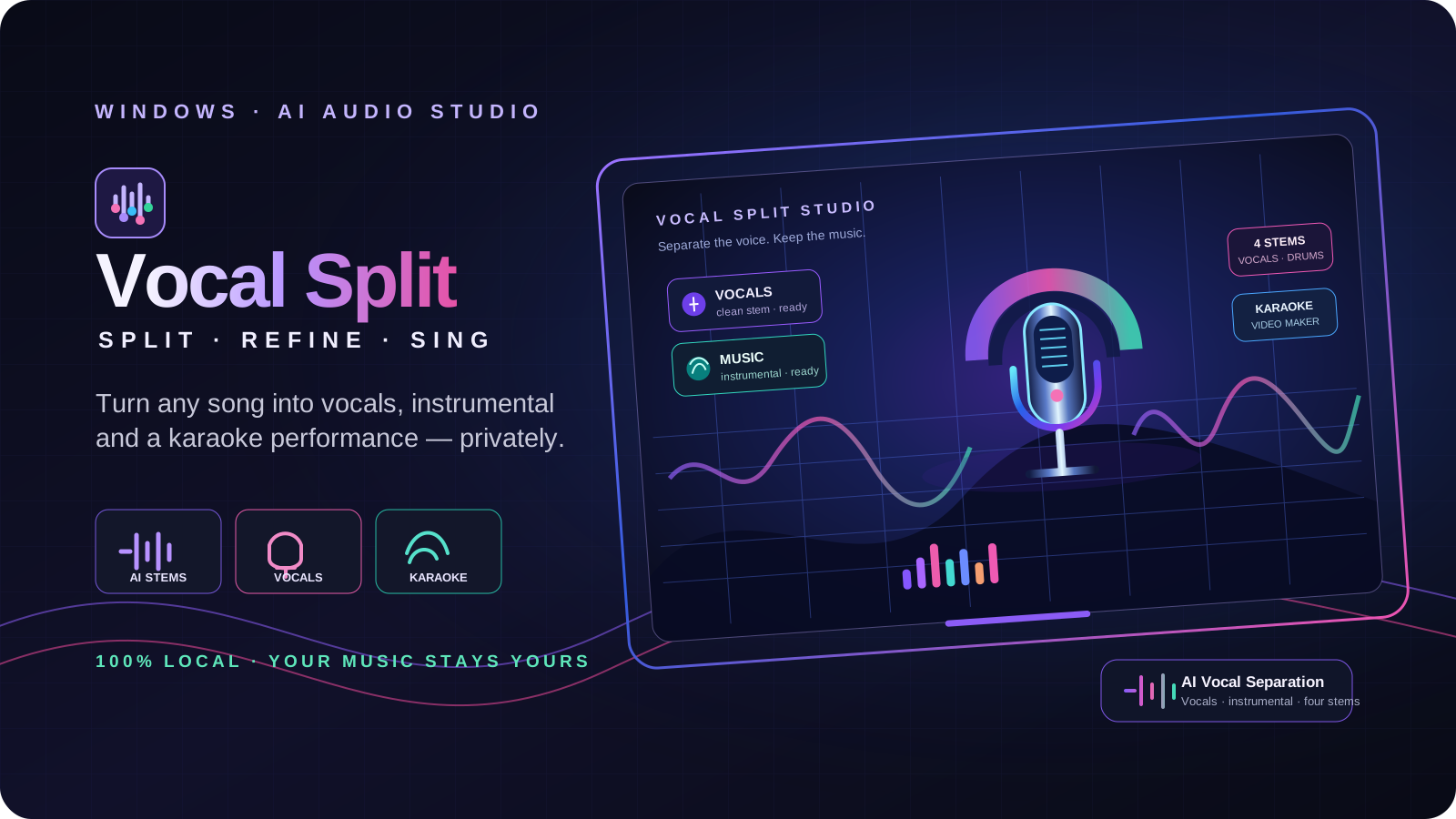
Vocal Split cover — neon microphone, headphones, audio waveforms and AI separated vocal and instrumental stems

Split any song. Sing it tonight.

Vocal Split takes a song apart with AI — the voice on one side, the music on the other, or all four parts — then turns it into a karaoke video with every word lighting up as it is sung, an MP3+G for karaoke players, a mix of its parts with your own recordings, or a whole karaoke party on your television. Everything happens on your own computer. Nothing is uploaded, ever.

Internal testing · waiting for a certified code signature · Release and pricing to be announced
100% offlineNothing uploaded
2 or 4 stemsAI separation
MP4 · MP3+GKaraoke output
4K · 9:16TV to phone
No uploads. No credits. No waiting in someone else's queue. As many songs as you like. The AI runs on your own processor, so your music — and your privacy — never leave the room.
How it works Splitter Cleanup Equalizer Effects · Key & tempo Karaoke maker Timing Video settings The look Video gallery MP3+G Karaoke party Batch Mixer History & cutting Settings Editions Requirements FAQ
How it works

From a song file to a karaoke night in four steps

Vocal Split is one app for the whole journey. Every step keeps its result, so you never do the slow part twice.

01 · SeparateTake the song apart

Open an MP3, WAV, FLAC, M4A or OGG file. The AI pulls the vocal away from the music — or splits drums, bass and the rest as well.

02 · TimePlace the words

Paste the lyrics. Vocal Split finds when every line — and, with the aligner, every word — is sung. Drag anything that needs correcting.

03 · MakeWrite the karaoke

An MP4 video for any TV, in 720p, 1080p, 4K or phone shape, or an MP3+G for karaoke players and hosts' software.

04 · SingRun the party

Queue your singers, put the words on the television, change the key for each person, and let the next song start by itself.

Inside the app
01 · Splitter

Separate vocals and music with studio-grade AI

The Splitter page is where every song starts. It uses Demucs, the open AI model that musicians and researchers use for source separation, running entirely on your computer and sped up with Intel OpenVINO.

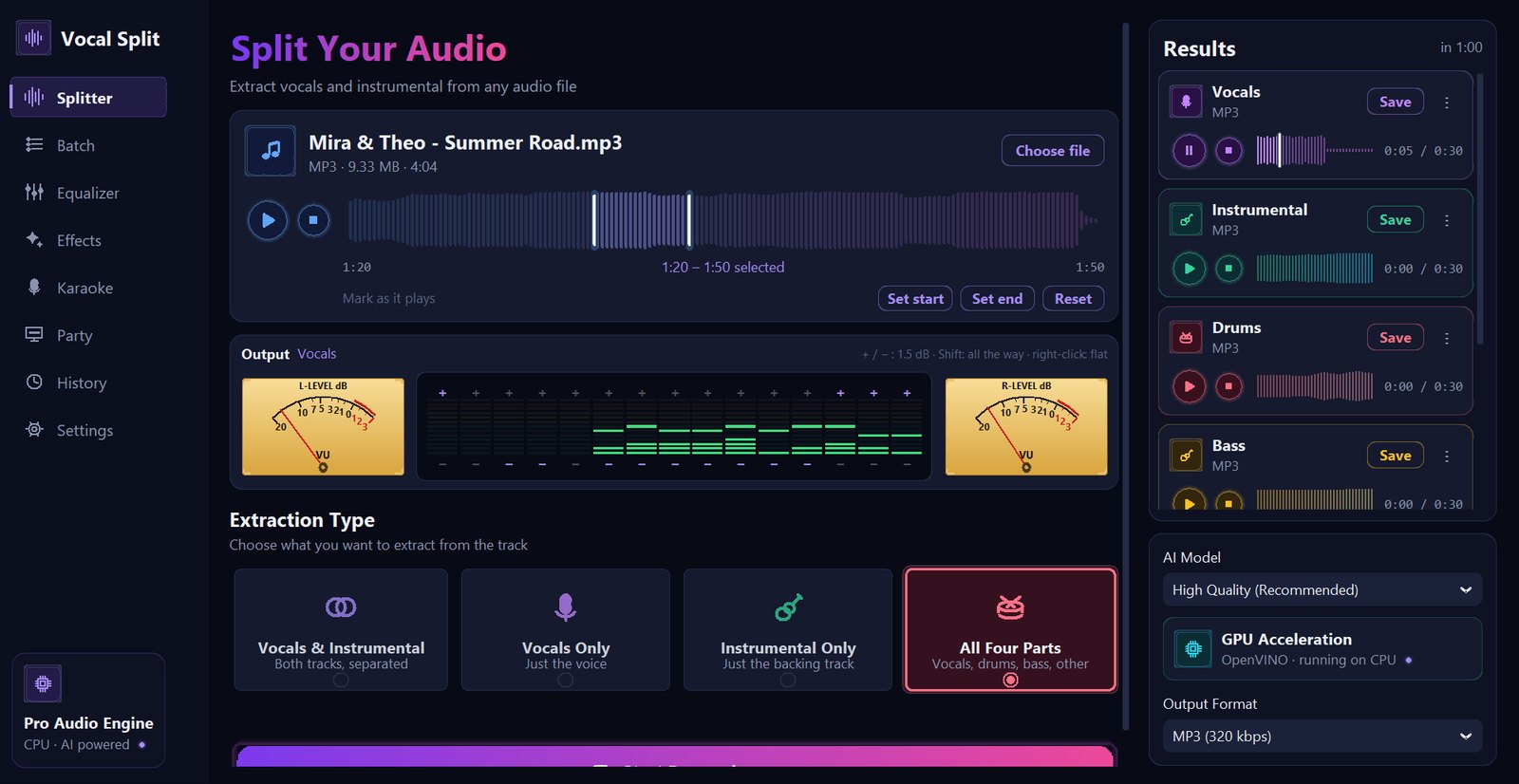
The Splitter page with a song loaded, a section from 1:20 to 1:50 selected on the waveform, the vocal stem playing with the VU needles and analyser moving, and four stems in the results column
Splitter — a section selected, “All Four Parts” chosen, the vocal stem playing through the meters

Choosing and auditioning the song

The Output panel: VU meters and a 15-band analyser

Below the player sits an Output panel modelled on classic studio hardware: a left and right VU needle, each with a green lamp that lights while the needle is in the normal range and a red one that lights when it reaches the red, and, between them, a 15-column spectrum analyser with falling peaks. It shows what actually leaves the app — after the equalizer and effects — and it tells you what is playing (“Output · Vocals”).

Four ways to separate

  • Vocals & Instrumental Both tracks, separated — the voice on its own and everything else together. The one you need for karaoke.
  • Vocals Only Just the voice, for remixes, covers and a cappella.
  • Instrumental Only Just the backing track.
  • All Four Parts Pro Vocals, drums, bass and other — plus the instrumental — for musicians who want to play along, practise or remix.

Processing

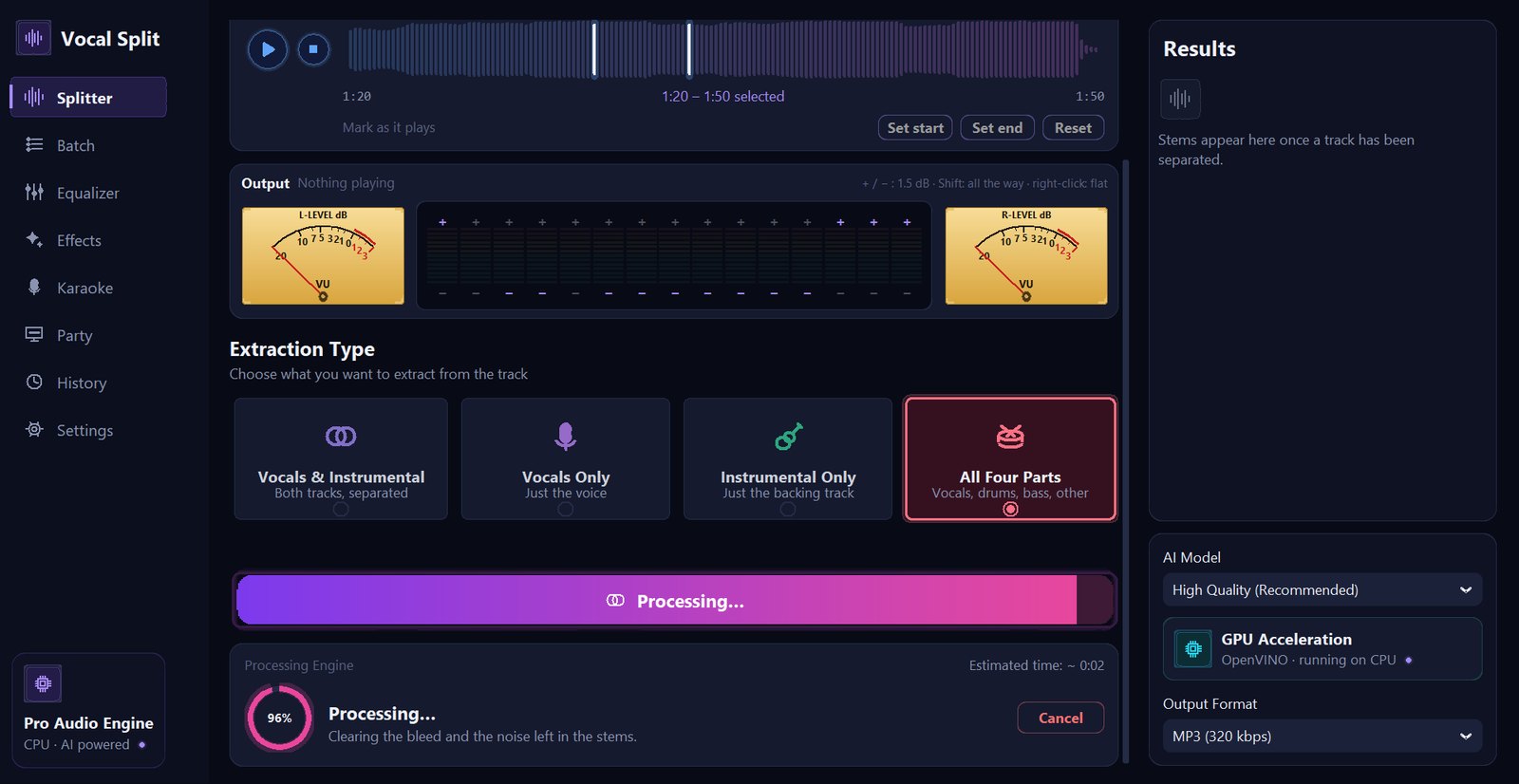
Separation in progress: the Start Processing button filling up as a progress bar, a progress ring at 96%, the estimated time left, a note saying the stems are being cleaned, and a Cancel button
The Start Processing button becomes its own progress bar; the engine card shows the percentage, time left, the current step and Cancel

Results

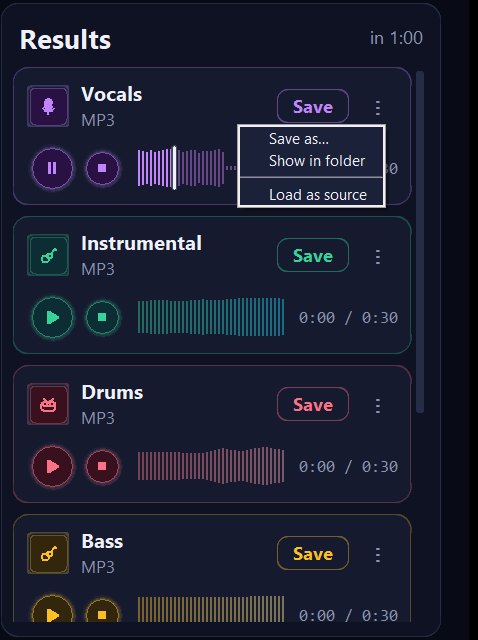
Every stem arrives as its own card in its own colour — purple for vocals, green for the instrumental, rose for drums, amber for bass, sky blue for the rest and orange for the trimmed original — so you can tell them apart at a glance. The header says how long the separation took.

  • Player Play, pause and stop each stem, with its own waveform and time.
  • Save Writes the stem where you choose, with a sensible name like “Song (Vocals).mp3” — through your equalizer and effects if you want (see Settings).
  • Save as… pick another name or folder · Show in folder opens Explorer on the file · Load as source opens that stem on the Splitter so you can separate it again.
The Results column with Vocals, Instrumental, Drums and Bass stem cards and the menu of the vocal stem open, offering Save as, Show in folder and Load as source
Stem cards and the ⋮ menu

The engine panel

02 · Cleanup

A cleaner voice and a cleaner backing track

Every AI separation leaves a little of the music in the vocal and a little of the voice in the music. Vocal Split adds its own cleanup pass after the model: it compares the two stems moment by moment and takes out the bleed and the hiss, while leaving everything the model was sure about alone.

03 · Equalizer

A 15-band equalizer with a live response curve

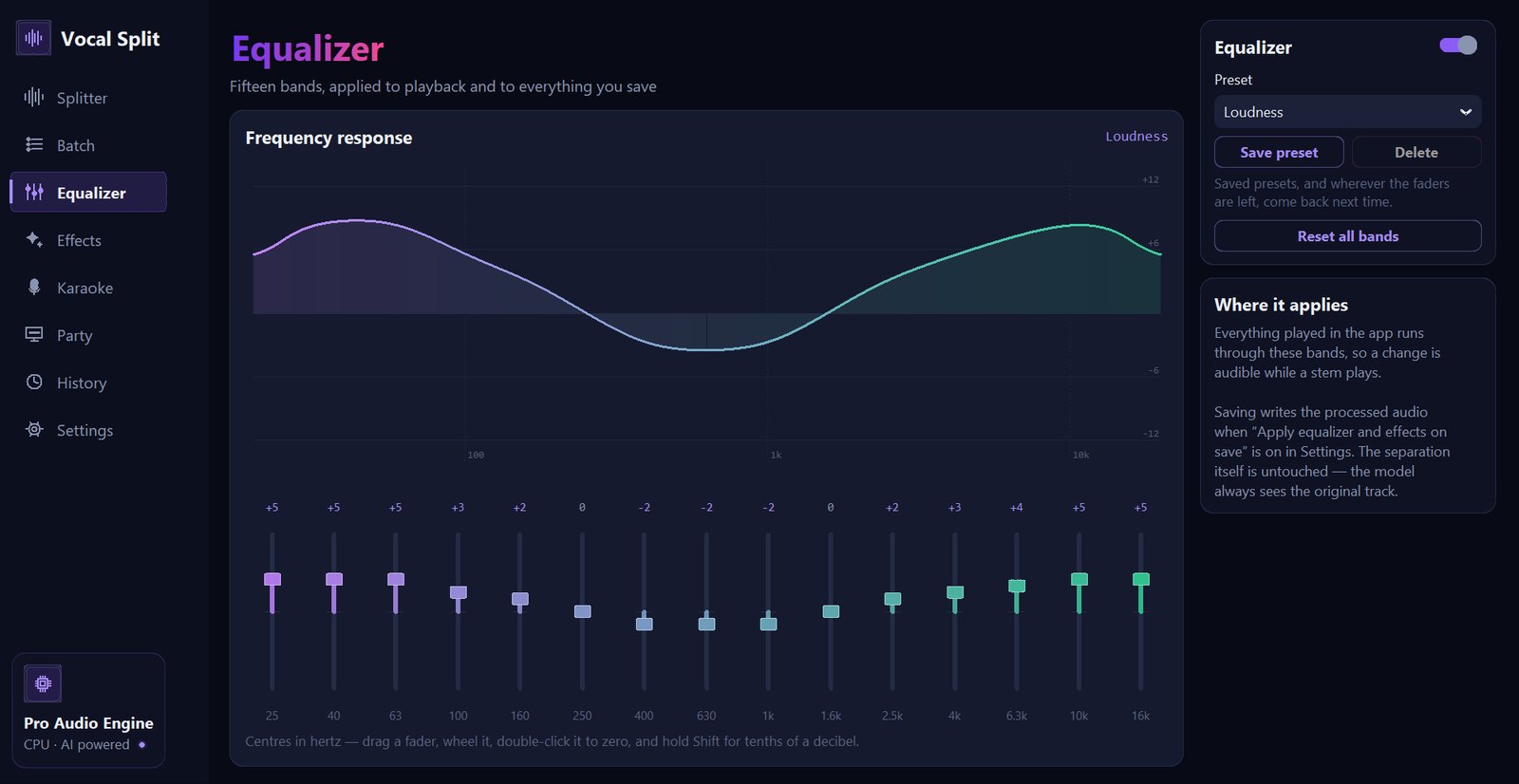
Fifteen bands from 25 Hz to 16 kHz, two thirds of an octave apart, each from −12 to +12 dB. Mud at 250 Hz, boxiness at 400 Hz, presence at 2.5 kHz and air at 10 kHz each get a fader of their own. The equalizer applies to everything the app plays — and, if you like, to everything it saves.

The Equalizer page with the Loudness preset: a smooth frequency response curve lifting the lows and highs, fifteen colour-coded faders from 25 Hz to 16 kHz with their values, and the preset card on the right
Equalizer with the “Loudness” preset
04 · Effects · Key & tempo

Bass you can hear on a laptop, space, width, fades — and any song in the singer's key

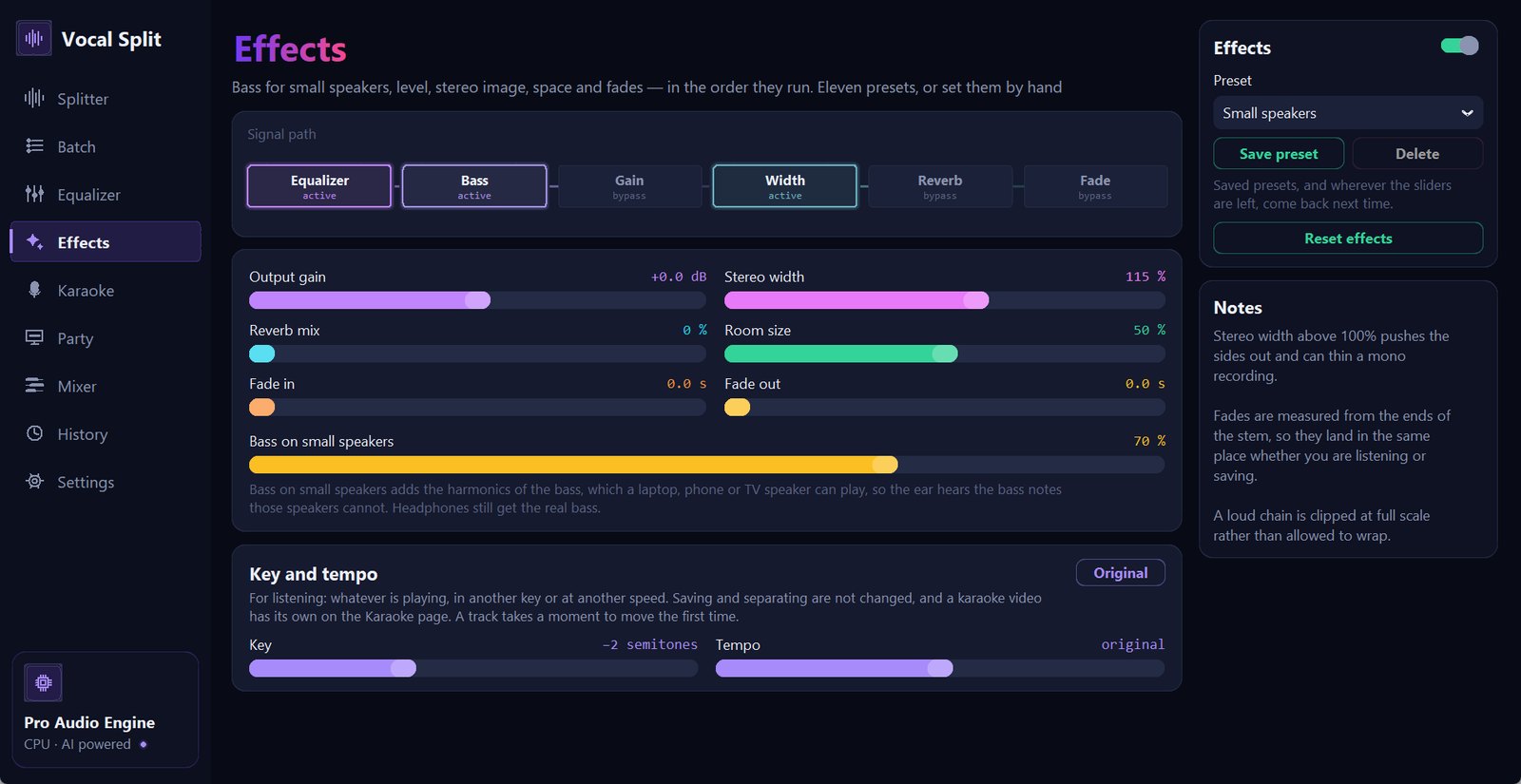
The Effects rack runs after the equalizer, in the order shown by the lit signal path at the top: Equalizer → Bass → Gain → Width → Reverb → Fade. Stages that are doing nothing show “bypass”, so you always know what is active.

The Effects page with the Small speakers preset: signal path with Equalizer, Bass and Width active, sliders for output gain, stereo width, reverb mix, room size, fade in and fade out, a Bass on small speakers slider at 70 percent, and a Key and tempo card with the key lowered by two semitones
Effects with the “Small speakers” preset, and the key lowered two semitones for listening
  • Output gain Louder or quieter overall. A loud chain is limited cleanly at full scale rather than allowed to distort.
  • Stereo width From mono to extra-wide. Above 100% pushes the sides out.
  • Reverb mix · Room size From a small room to a cathedral.
  • Fade in · Fade out Measured from the ends of the stem, so they land in the same place whether you are listening or saving.
  • Preset Dry, Room, Plate, Hall, Cathedral, Wide, Mono, Vocal air, Instrumental bed, Top and tail, Small speakers — every preset sets every control, so nothing is left over from the last one.
  • Save preset Delete Reset effects and the Effects on/off switch.

Bass on small speakers

A laptop, a phone or a television's own speakers play almost nothing below 150–200 Hz — and that is where nearly all of a bass line lives. Separate the bass on a laptop and it can seem to be silent, even though the meters show it moving. Bass on small speakers fixes what you hear rather than what is recorded:

Key and tempo

Move anything you listen to up to six semitones up or down and play it at 80–120% of its speed, with a high-quality time-stretch that keeps voices natural. The Original button puts both back. This changes listening only; the karaoke page has its own key and tempo for the video (see below). A track takes a moment to move the first time, then every key you have tried is kept ready.

05 · Karaoke maker

Turn any separation into a karaoke video

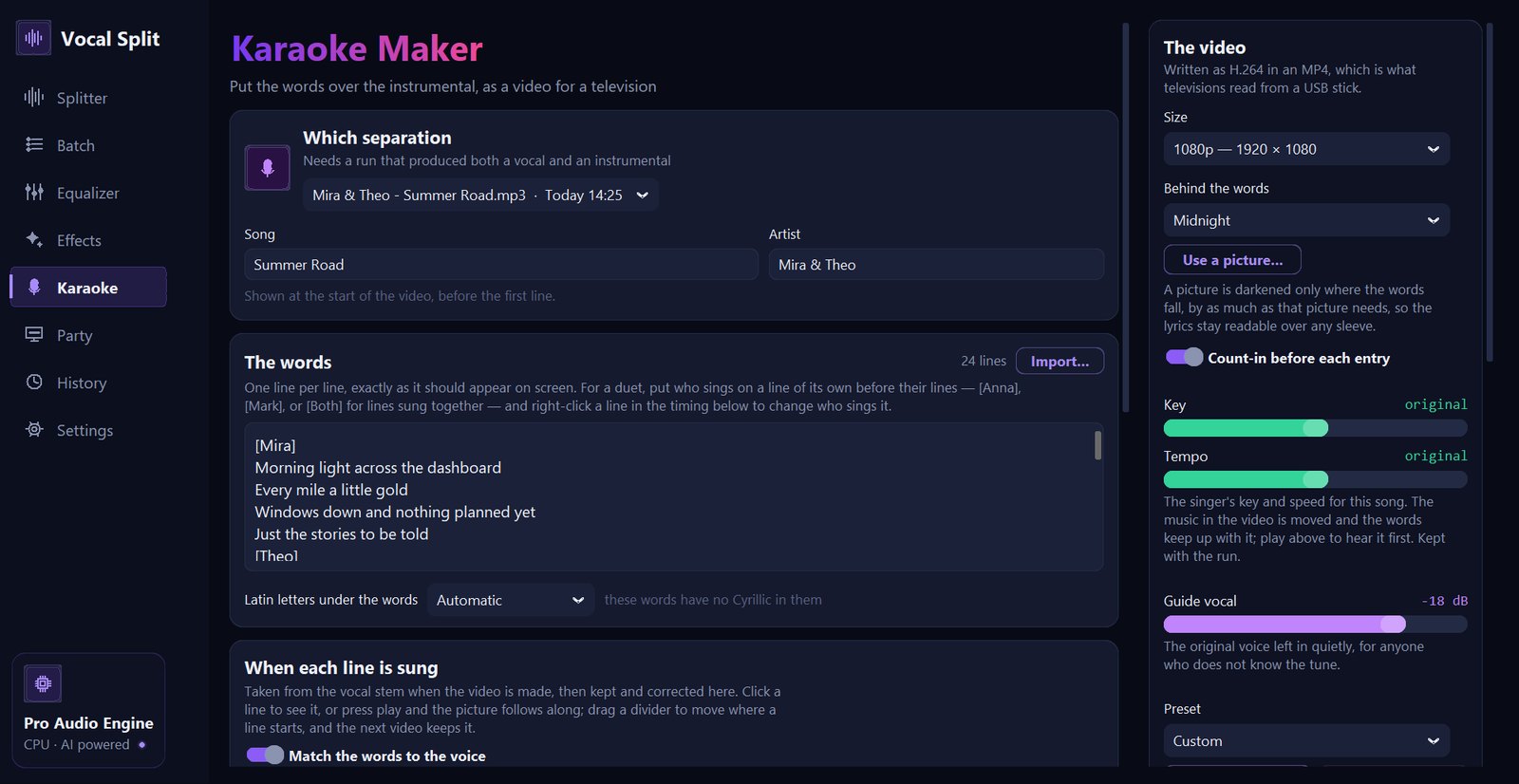
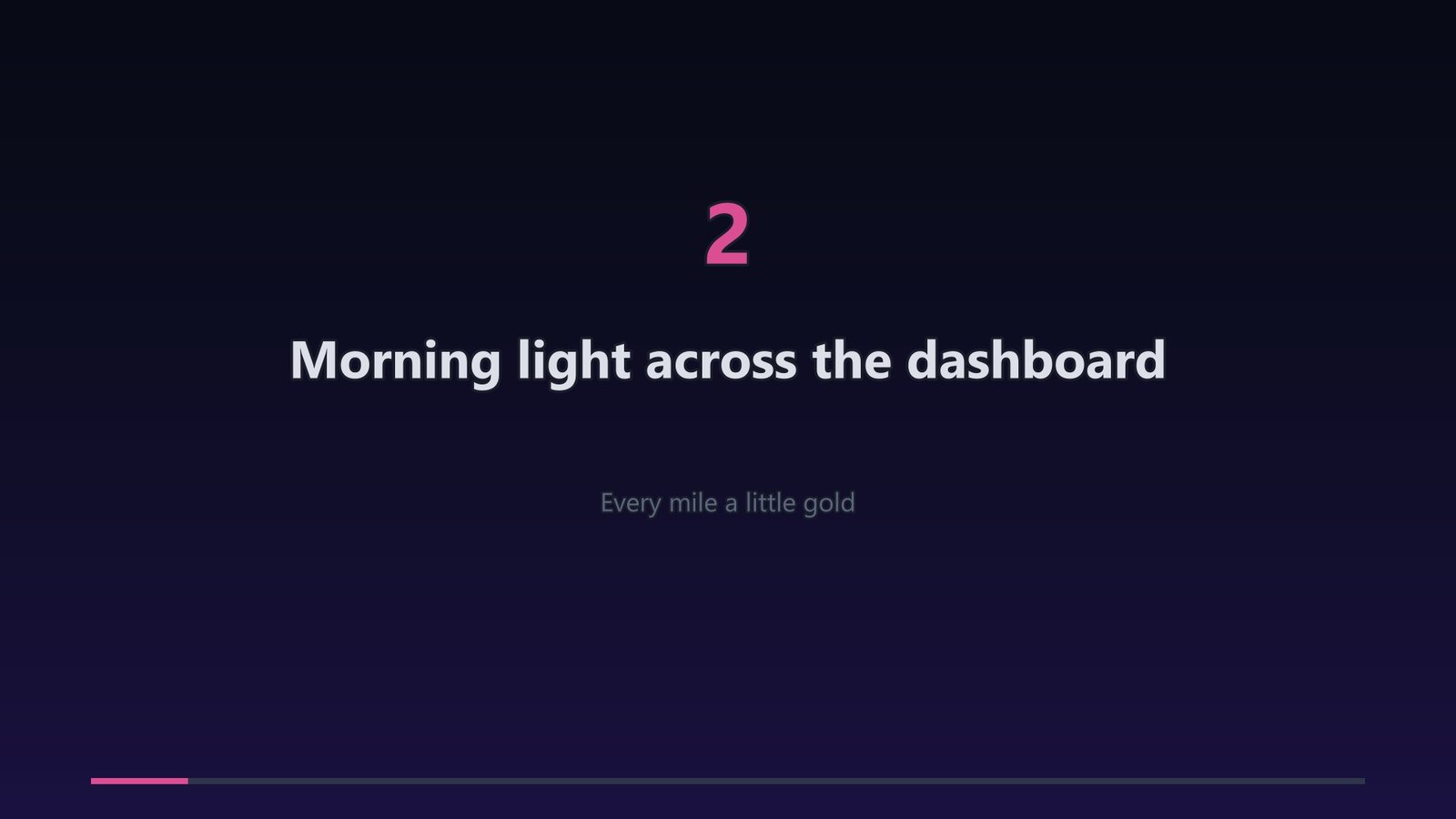
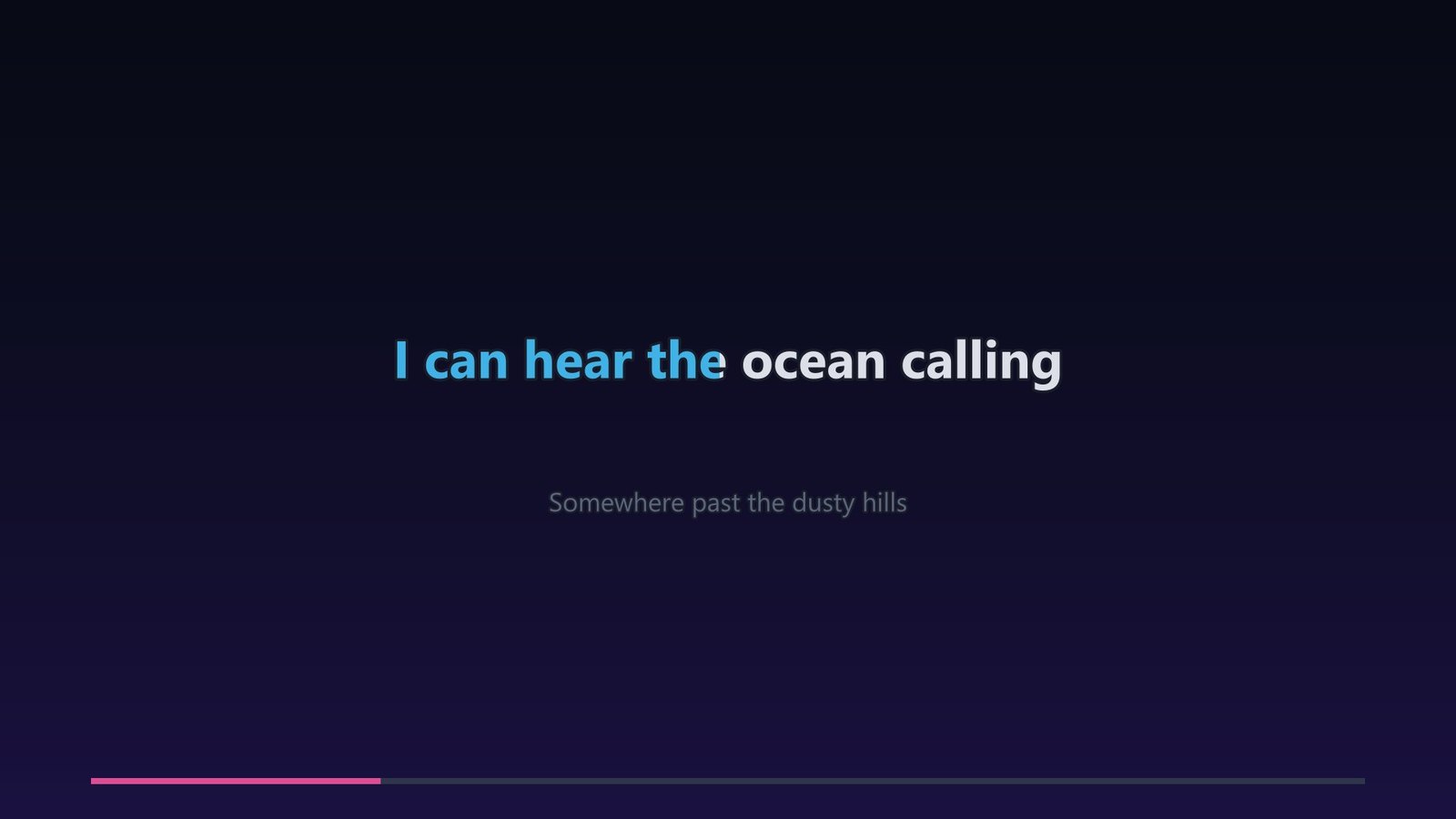
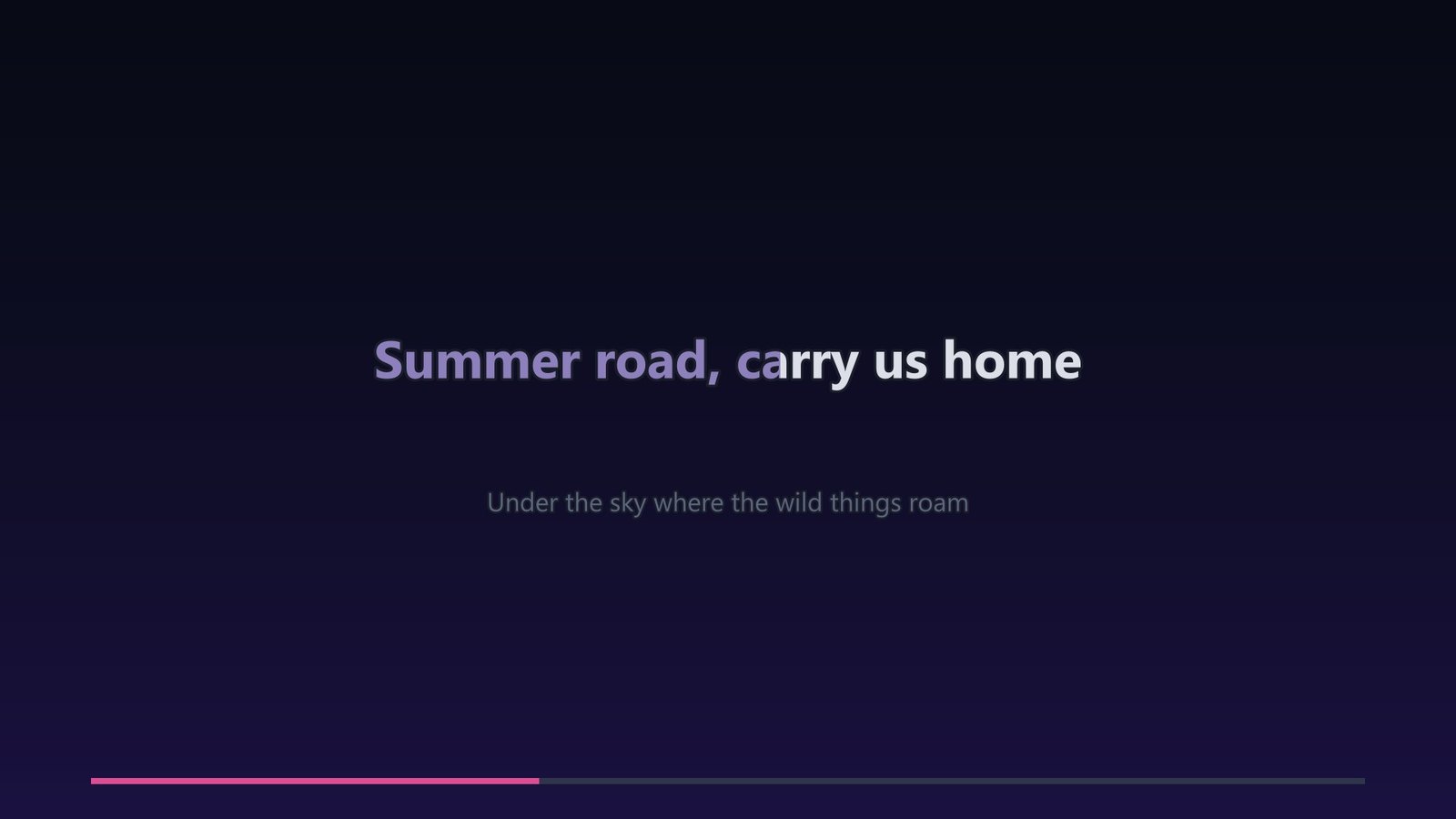
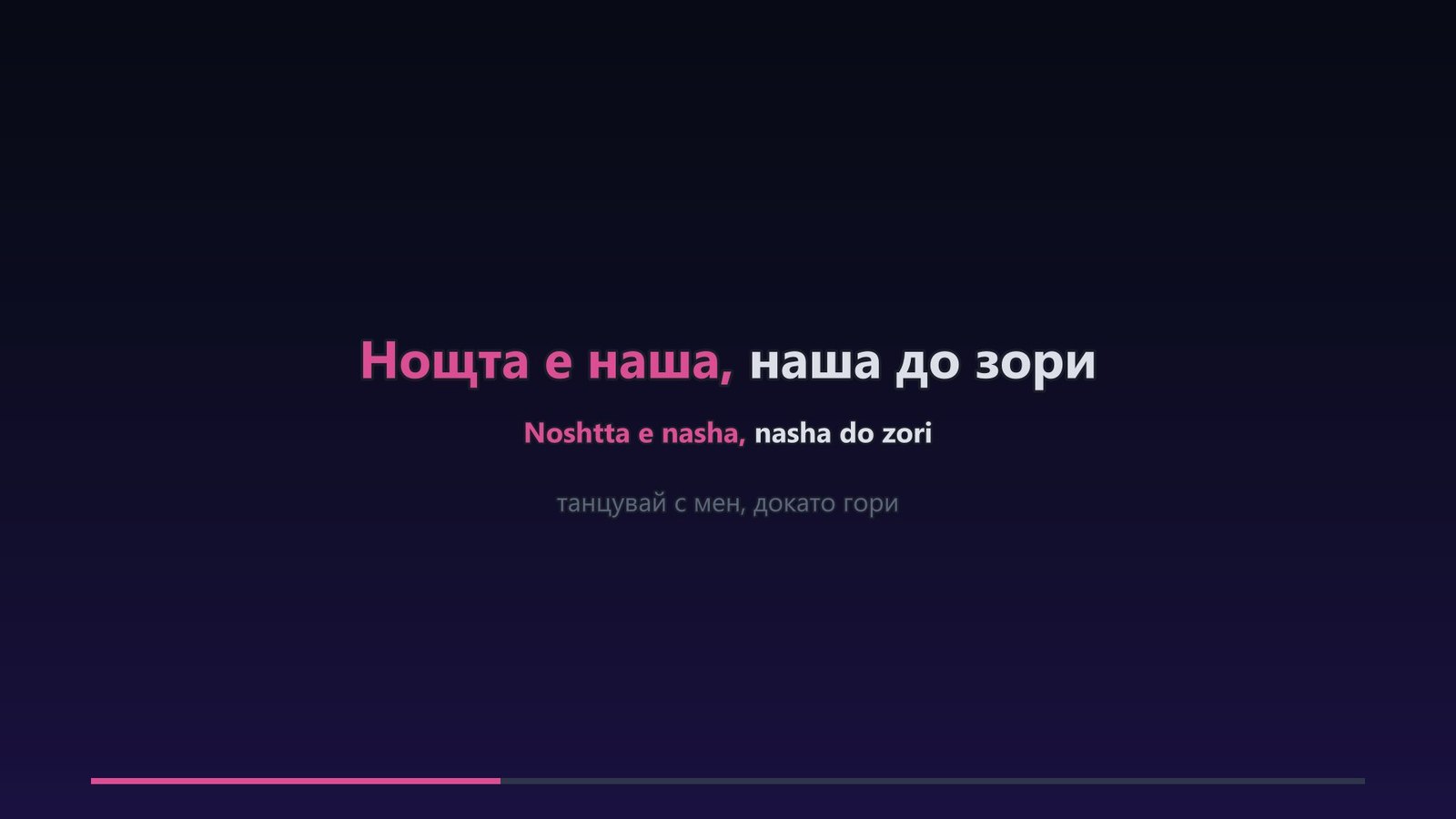
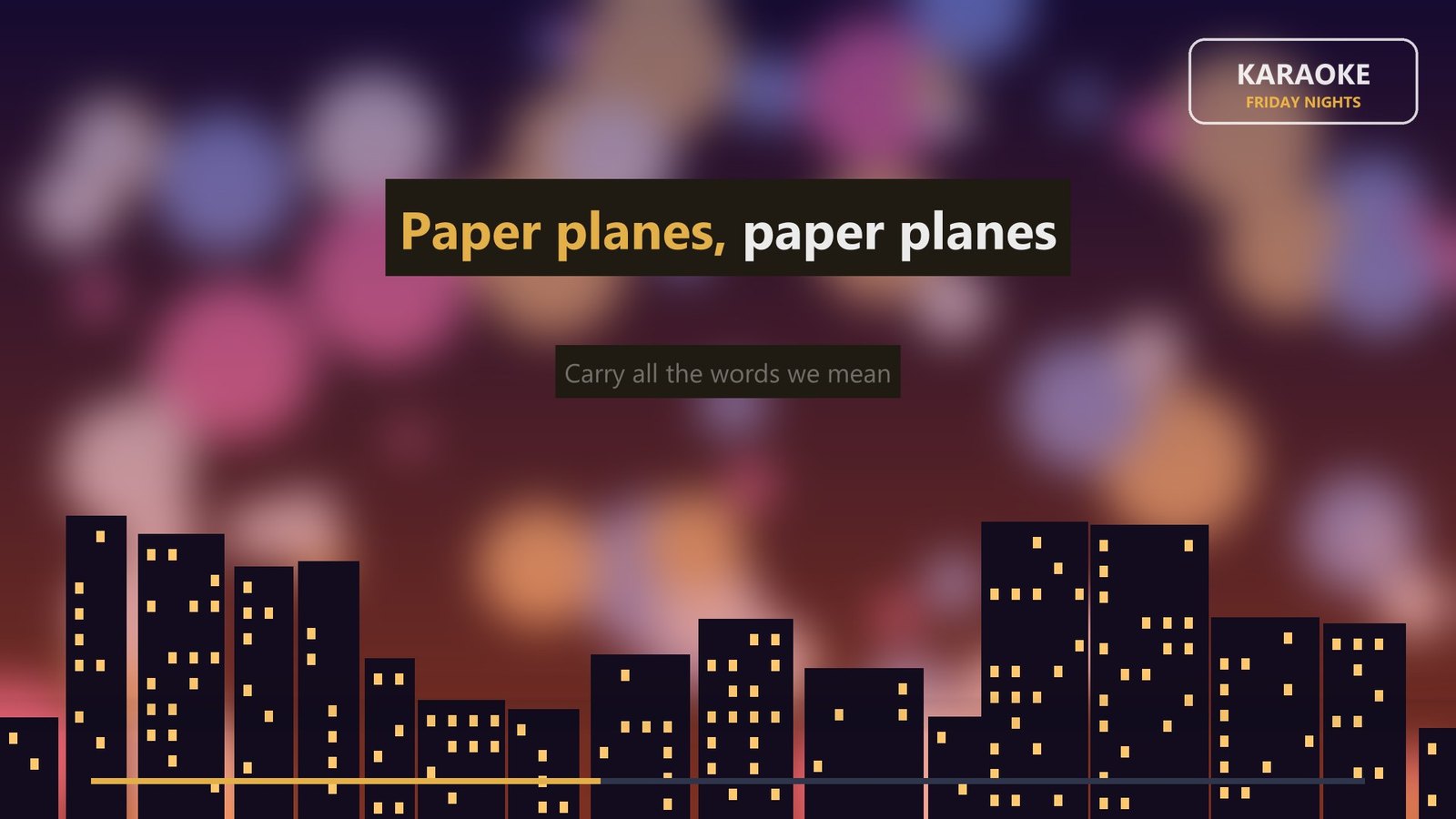
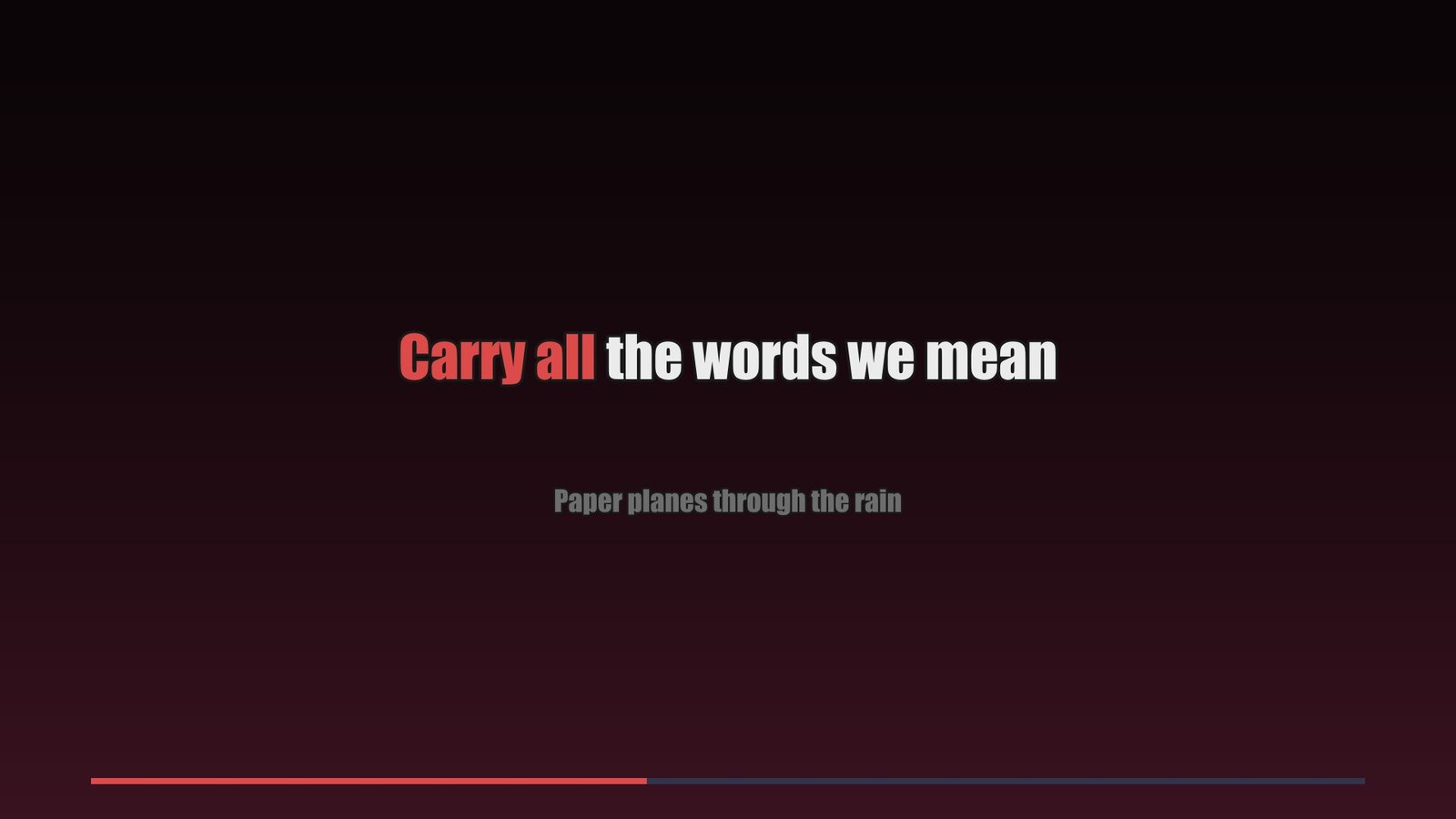
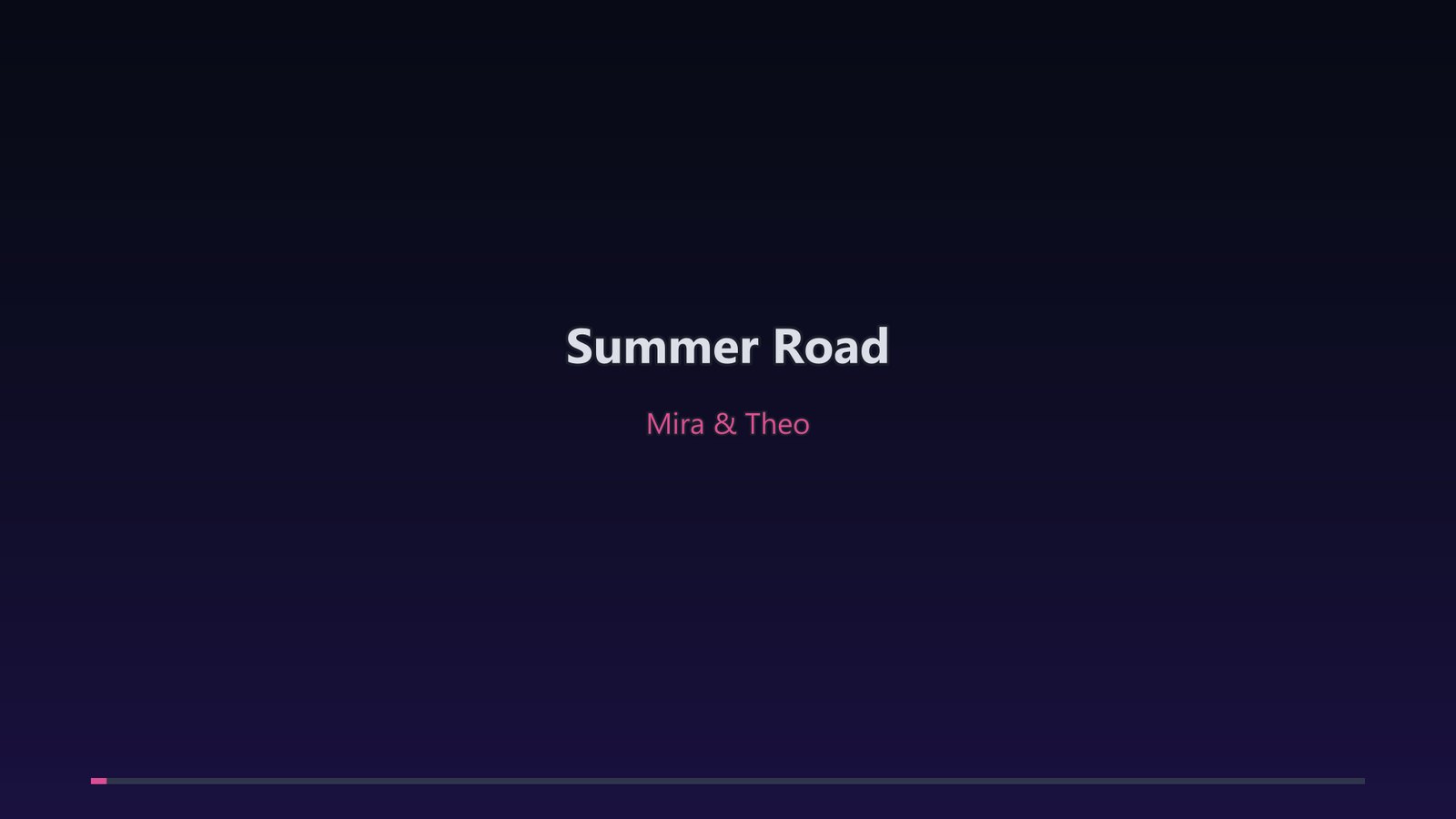
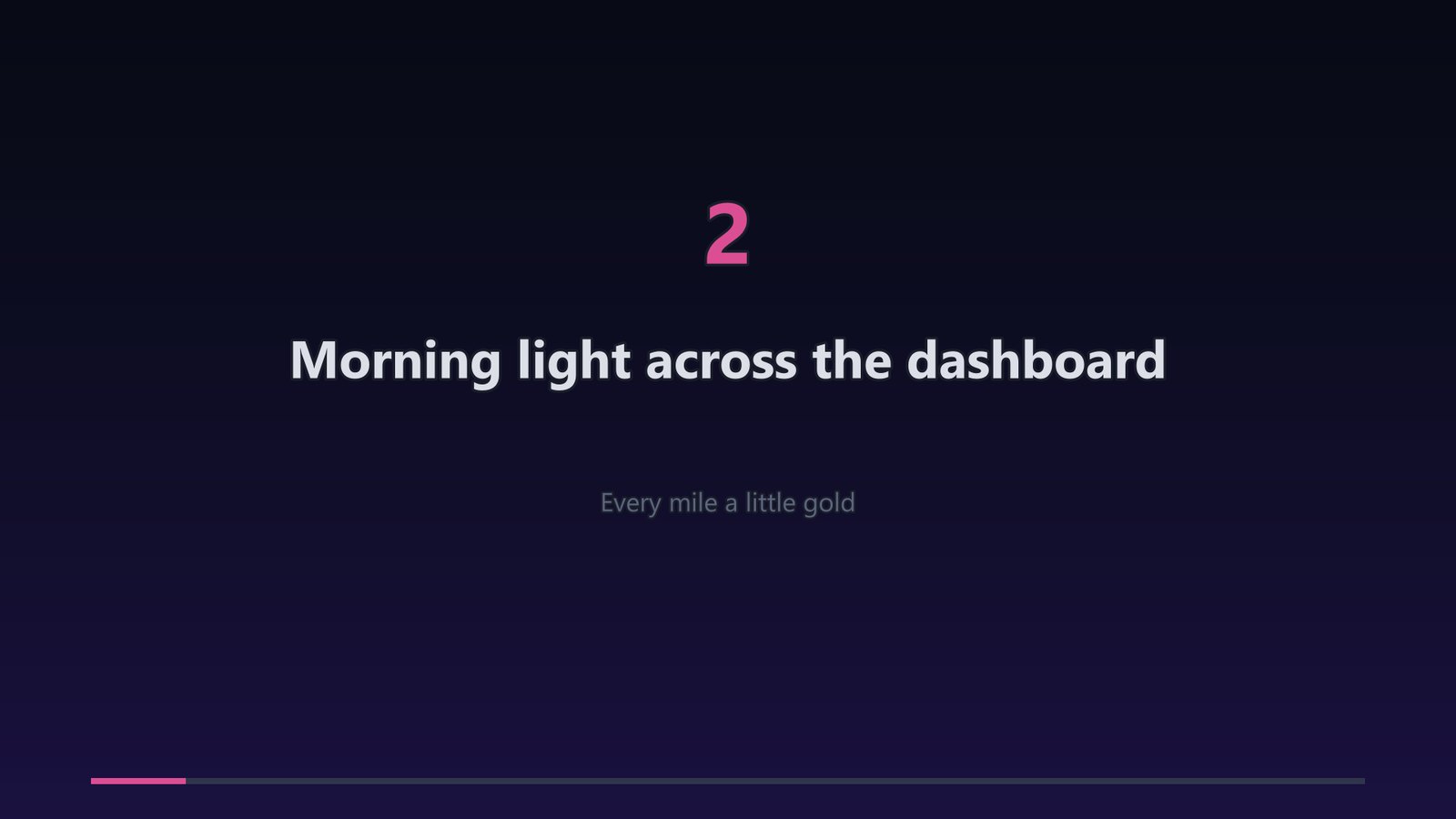
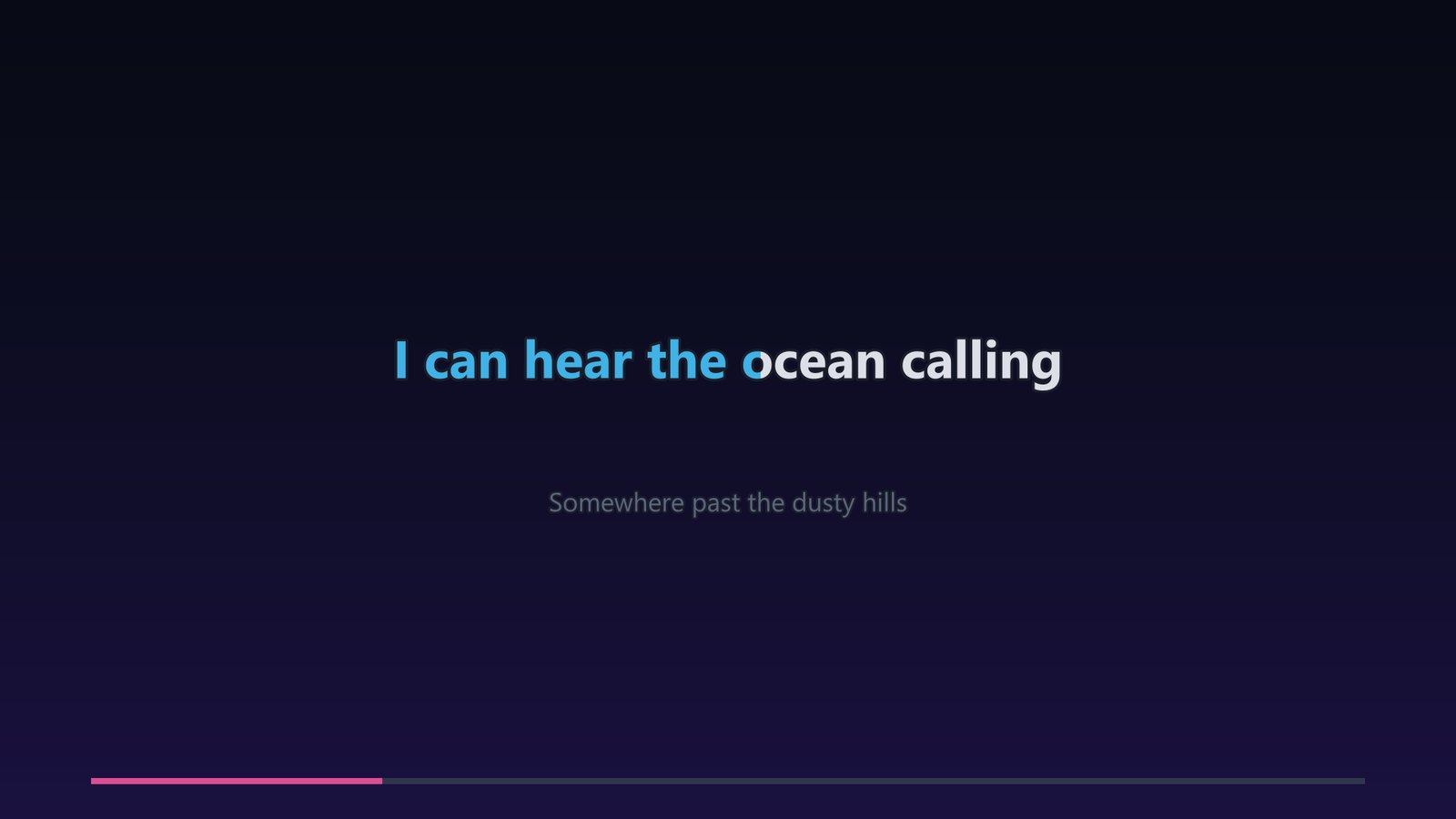
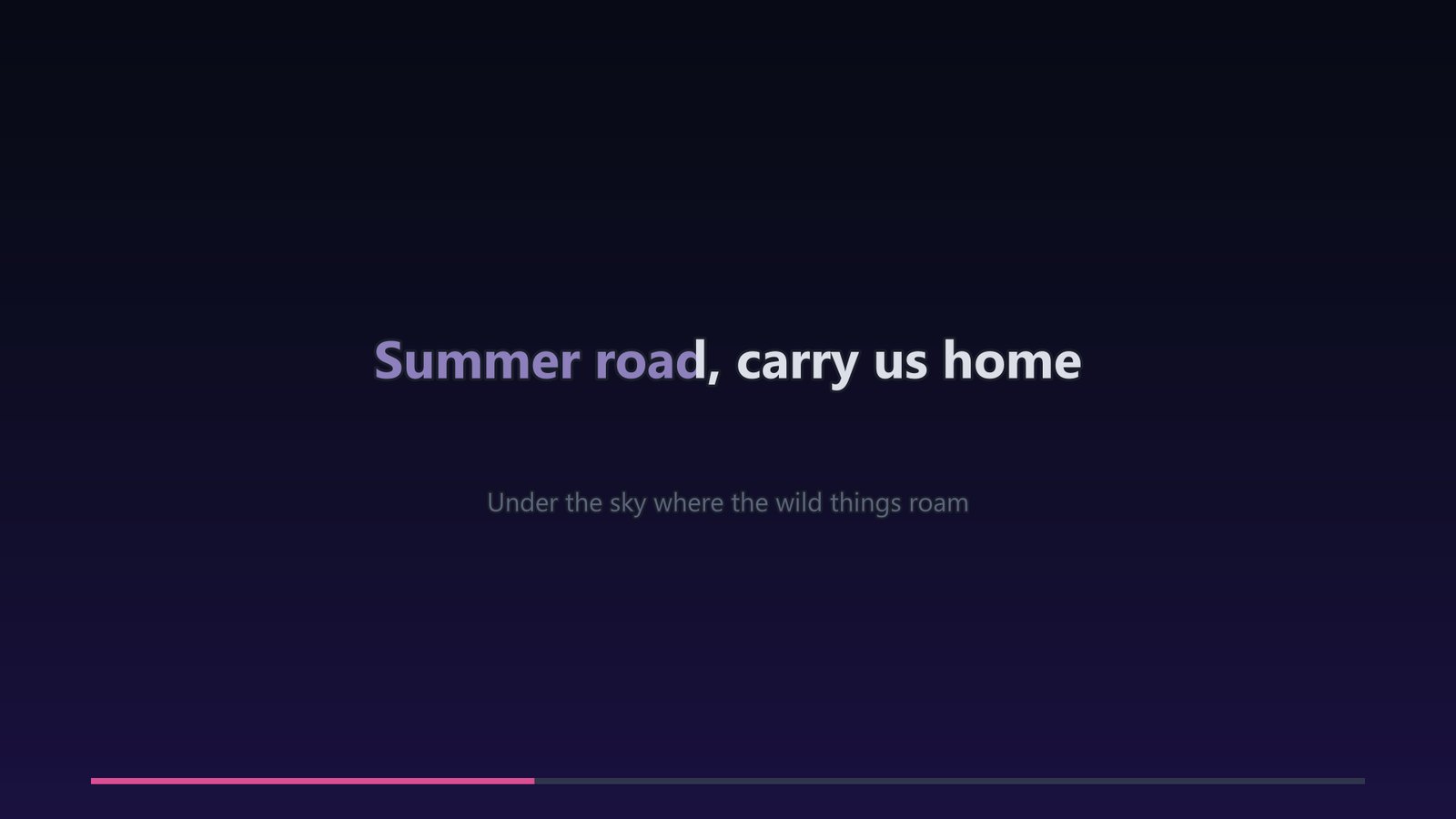
The Karaoke page puts the words over the instrumental as a video for your television — every word lighting up as it is sung, with a countdown before each verse, the next line waiting underneath and a progress bar along the bottom. The result is a standard MP4 (H.264) that plays from a USB stick on practically any TV.

The Karaoke Maker page: a separation chosen, the song and artist boxes filled in, the words box with duet headings in brackets, the Latin letters menu, and the video settings on the right
Karaoke Maker — the separation, the title card and the words (a duet, with singer headings)

The song and its words

Any language and any script works — the words are drawn by the same professional subtitle engine that video players use, so Arabic, Hebrew, Hindi or Thai are joined and ordered correctly.
06 · Timing

Words that land exactly when they are sung

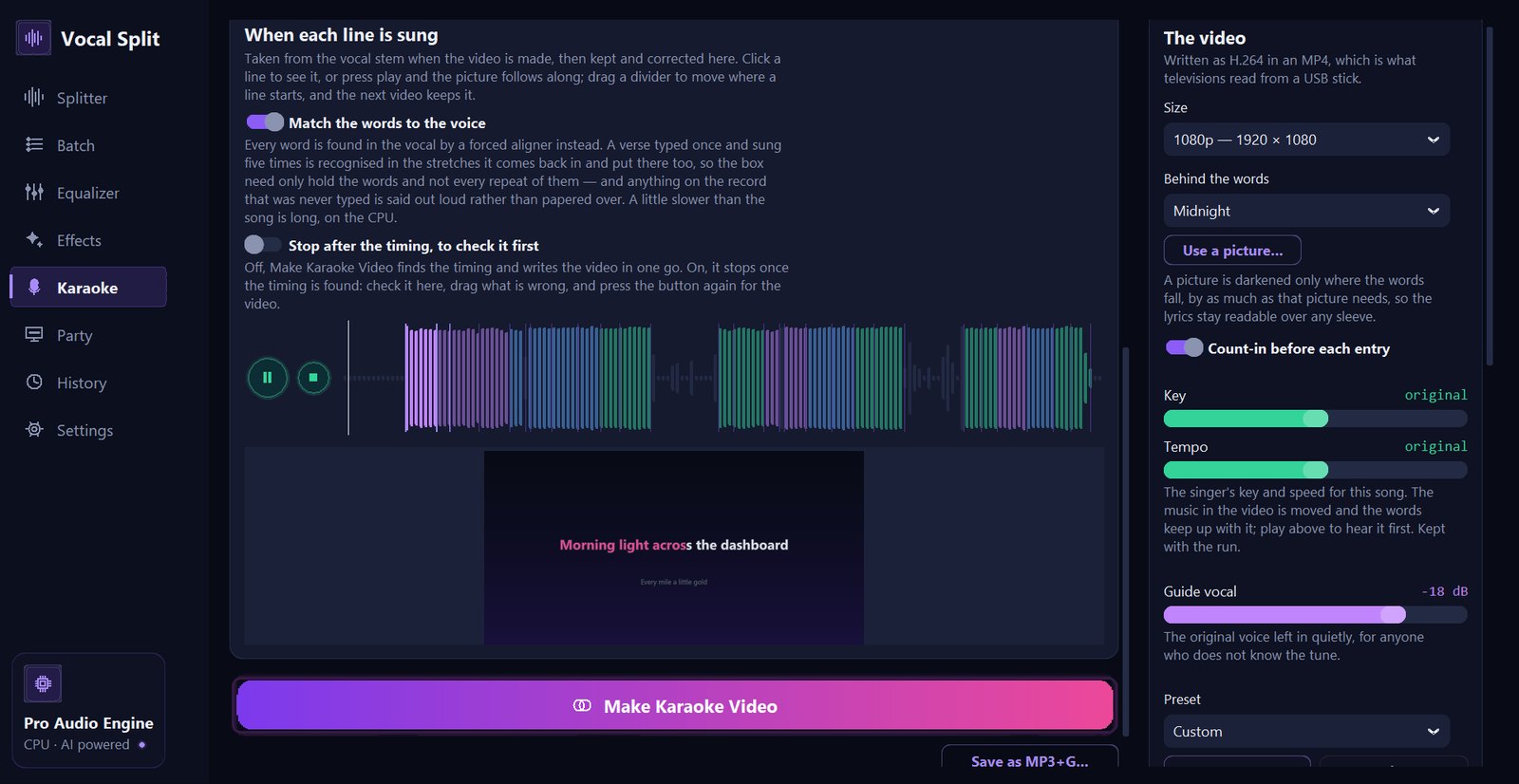
The timing card: the switches for matching the words to the voice and for stopping after the timing, the vocal waveform coloured by singer, a play button, a live preview of the video, and the Make Karaoke Video and Save as MP3+G buttons
The timing is drawn on the vocal's own waveform — coloured by singer — with a live preview underneath
07 · Video settings

Size, background, key and guide vocal

The right-hand column of the Karaoke page holds everything about how the video comes out.

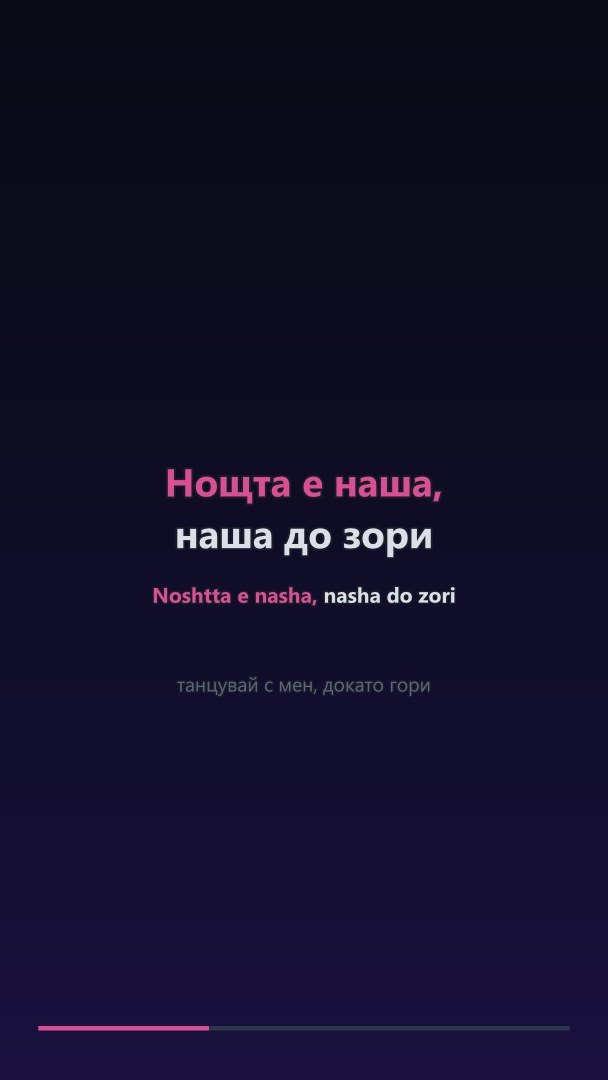
  • Size 1080p (1920 × 1080) for any modern TV · 4K (3840 × 2160) Pro for big screens and projectors, with the words drawn at full resolution · 720p for older sets · Vertical (1080 × 1920) for TikTok, Reels and Shorts, with its own layout rather than a squashed landscape video.
  • Behind the words Four calm gradient backgrounds — Midnight, Ink, Ember, Forest.
  • Use a picture… Put a photo or the album artwork behind the words. Vocal Split can also use the sleeve already embedded in the music file. The picture is darkened only where the words fall, and only as much as that picture needs, so the lyrics stay readable over any image.
  • Count-in before each entry A 3 – 2 – 1 countdown before a line that follows a long pause, so nobody has to guess when to come in.
  • Key Tempo The singer's key (±6 semitones) and speed (80–120%) for this song. The music in the video is moved and the words keep up with it. Play above to hear it first; the choice is kept with the song.
  • Guide vocal From Off up to −6 dB: the original voice left in quietly, for anyone who does not know the tune — just like the machines in karaoke bars.
  • Preset Save preset Delete The size, count-in, guide vocal and look, kept together under a name for next time.
  • Encoder A card showing which H.264 encoder your computer will use — graphics card (NVIDIA NVENC, Intel Quick Sync, AMD AMF) or Windows' own — tested on your machine, not just listed.
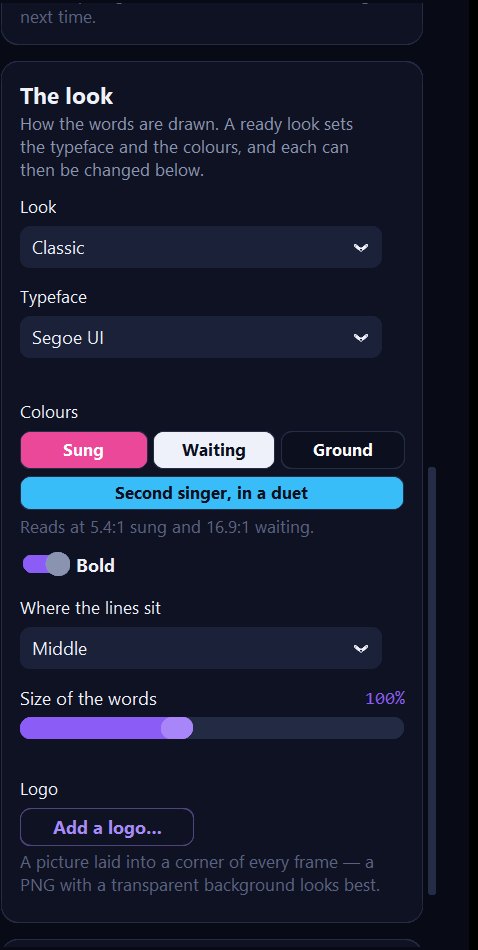
The Look card: look presets, typeface menu, colour buttons for sung, waiting, ground and second singer, a contrast readout, the bold switch, placement menu, size slider and the Add a logo button
The look card
08 · The look

Make the video yours

Choose a ready-made look, or design your own — the typeface, the colours, the weight, where the lines sit, how big they are, and your logo in a corner.

  • Look Six ready looks: Classic, Gold, Neon, Stage, Karaoke machine, Soft. Each sets the typeface, colours and weight, and leaves your placement, size and logo alone.
  • Typeface Pro Any font installed on your computer — checked, so a video never silently falls back to another font.
  • Sung Waiting Ground Pro The colour of words once sung, before they are sung, and the edge or box behind them. Second singer, in a duet sets the second voice's colour; both singers together get the two mixed.
  • Readability check The card shows the contrast of your colours (for example “Reads at 5.4:1 sung and 16.9:1 waiting”) and warns you if a choice would be hard to read.
  • Bold Where the lines sit Size of the words Pro Heavy or regular type; lines higher, in the middle or lower (to keep a face in the picture clear, or stay away from TV overlays); words from 80% to 130%.
  • Add a logo… Pro Your bar's or channel's logo in any corner of every frame, with its size and transparency. A PNG with a transparent background looks best.
10 · MP3+G Pro

MP3+G for karaoke players and hosts

MP3+G (CD+G) is the format of karaoke discs and of the software karaoke hosts use every night — software that can change the key live. Vocal Split writes a pair of files with the same name: Song.mp3 and Song.cdg.

  • Built for the format's limits A CD+G screen is 300 × 216 pixels with 16 colours, redrawn a little at a time. Vocal Split keeps the two lines in fixed places and sends the colour sweep first, so words light up on time — measured at 0.06 s late on average and 0.14 s at worst across a whole song.
  • Duets and colours Each singer's colour comes from your look.
  • In step to the sample The MP3 is written with the encoder's usual silent lead-in removed, so the words never run early.
  • Same audio as the video Guide vocal, key and tempo included.
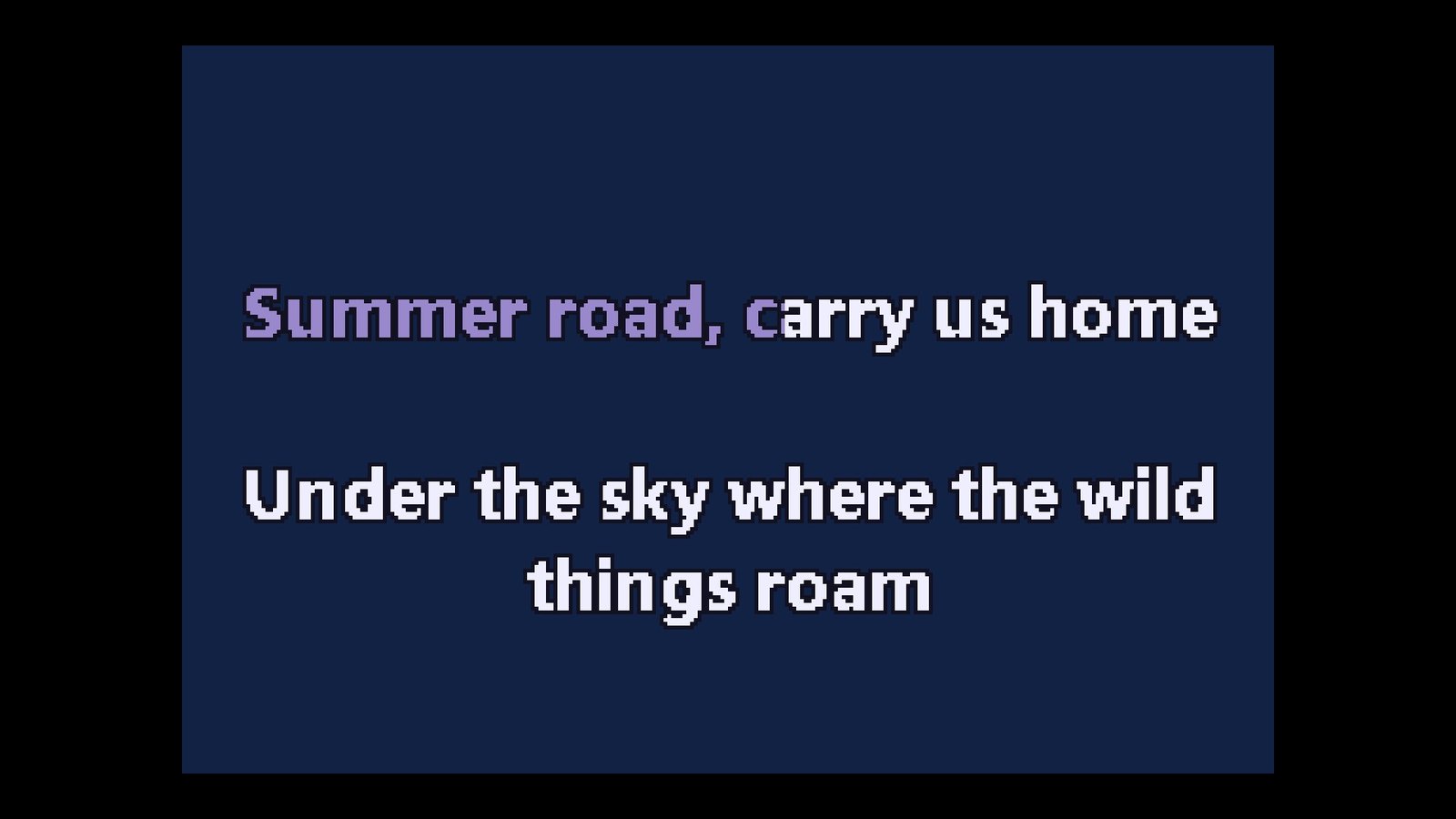
A CD+G karaoke screen with a duet line swept in the mixed colour and the next line waiting underneath, drawn in crisp pixel lettering
An MP3+G frame, as a karaoke player shows it
11 · Karaoke party

A karaoke night on your television

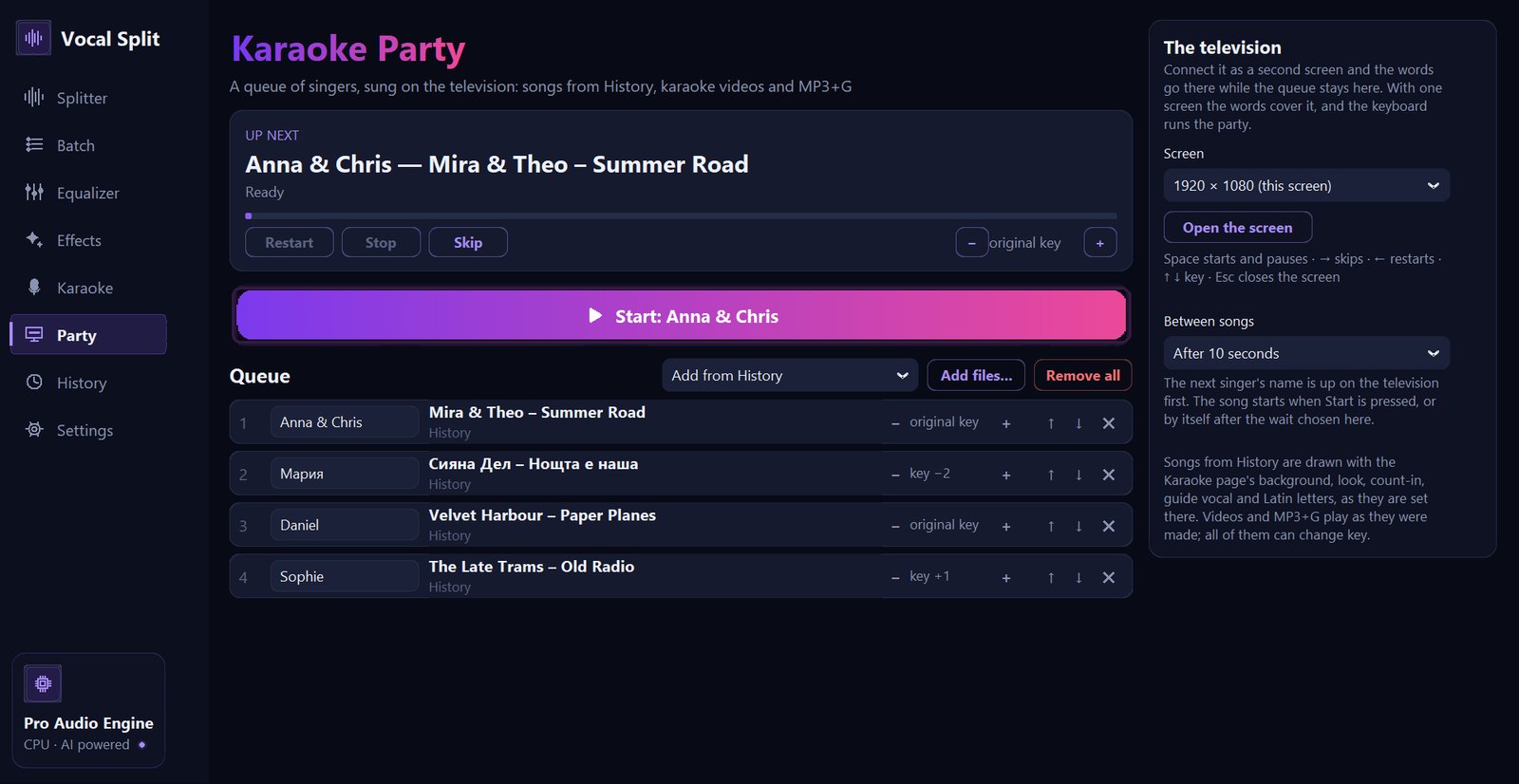
The Party page turns your laptop into a karaoke machine. Build a queue of singers and songs, put the words on the TV, and let Vocal Split move from one singer to the next.

The Karaoke Party page: an Up next card with Restart, Stop, Skip and key buttons, the big Start button, a queue of four songs each with a singer name, key and move buttons, and the television settings on the right
The Party page — four singers in the queue, each with their own key

The queue

Now playing

The television

KeyOn the party screen
SpaceStart the next song · pause · resume
or NSkip to the next singer
or RRestart the song
Key up or down a semitone
EscPause and close the screen
12 · Batch Pro

A whole folder of songs, done overnight

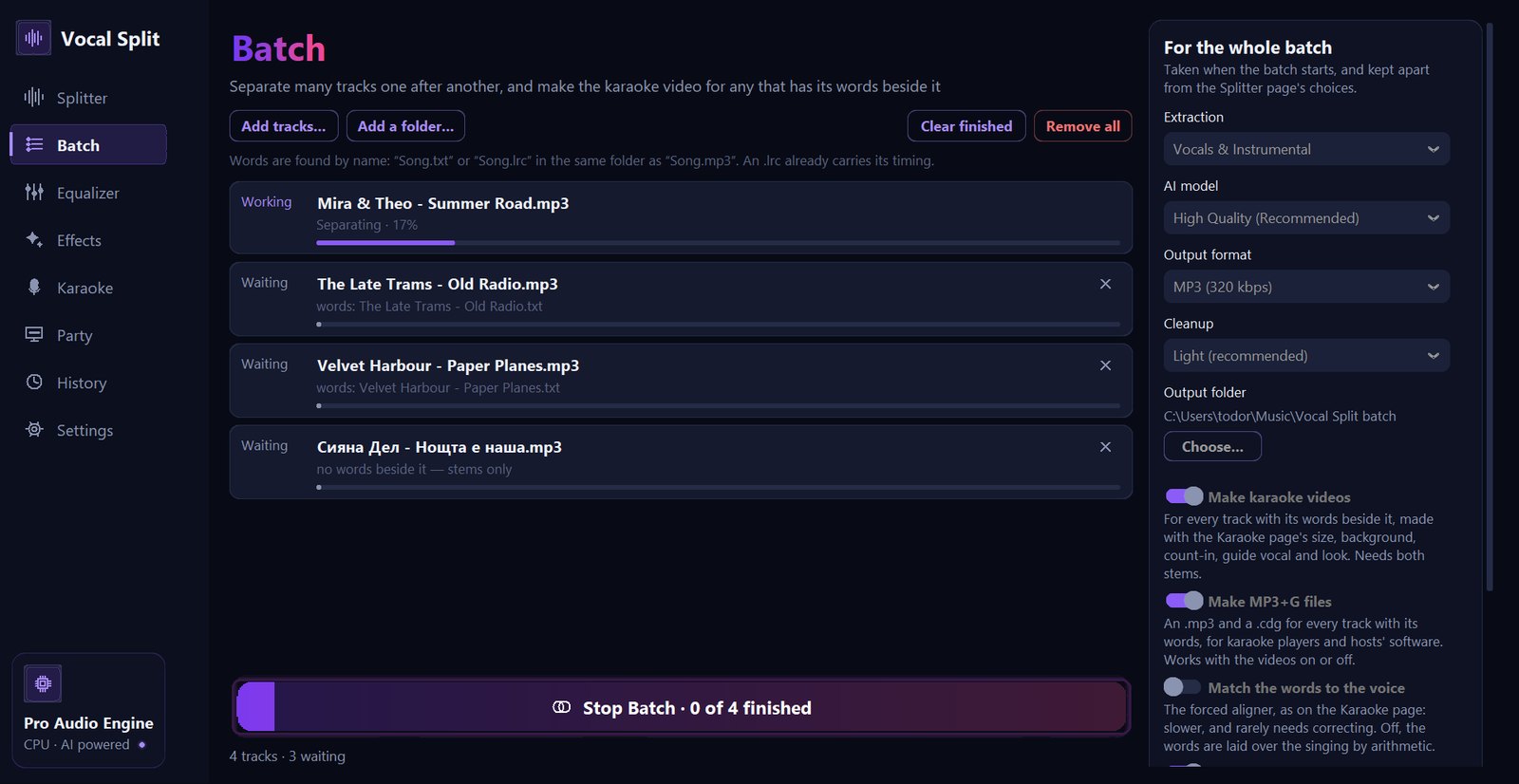
The Batch page works through a queue of tracks one after another — separating each, and making the karaoke video and MP3+G for every song that has its words beside it. Start it in the evening and find a finished library in the morning.

The Batch page with four tracks: one separating at 17%, three waiting, two with lyrics files found beside them; on the right the batch settings with extraction, model, format, cleanup, output folder and switches for videos and MP3+G
A batch at work — the button shows how many are finished and stops the batch when pressed
Vocal Split batch\
  Artist - Song\
    Artist - Song - Vocals.mp3
    Artist - Song - Instrumental.mp3
    Artist - Song (karaoke).mp4
    Artist - Song (karaoke).mp3
    Artist - Song (karaoke).cdg

Every separated song also appears in History, and its timing is kept — so the Karaoke page opens it ready to adjust.

13 · Mixer Pro

Mix the parts — and your own recordings — back together

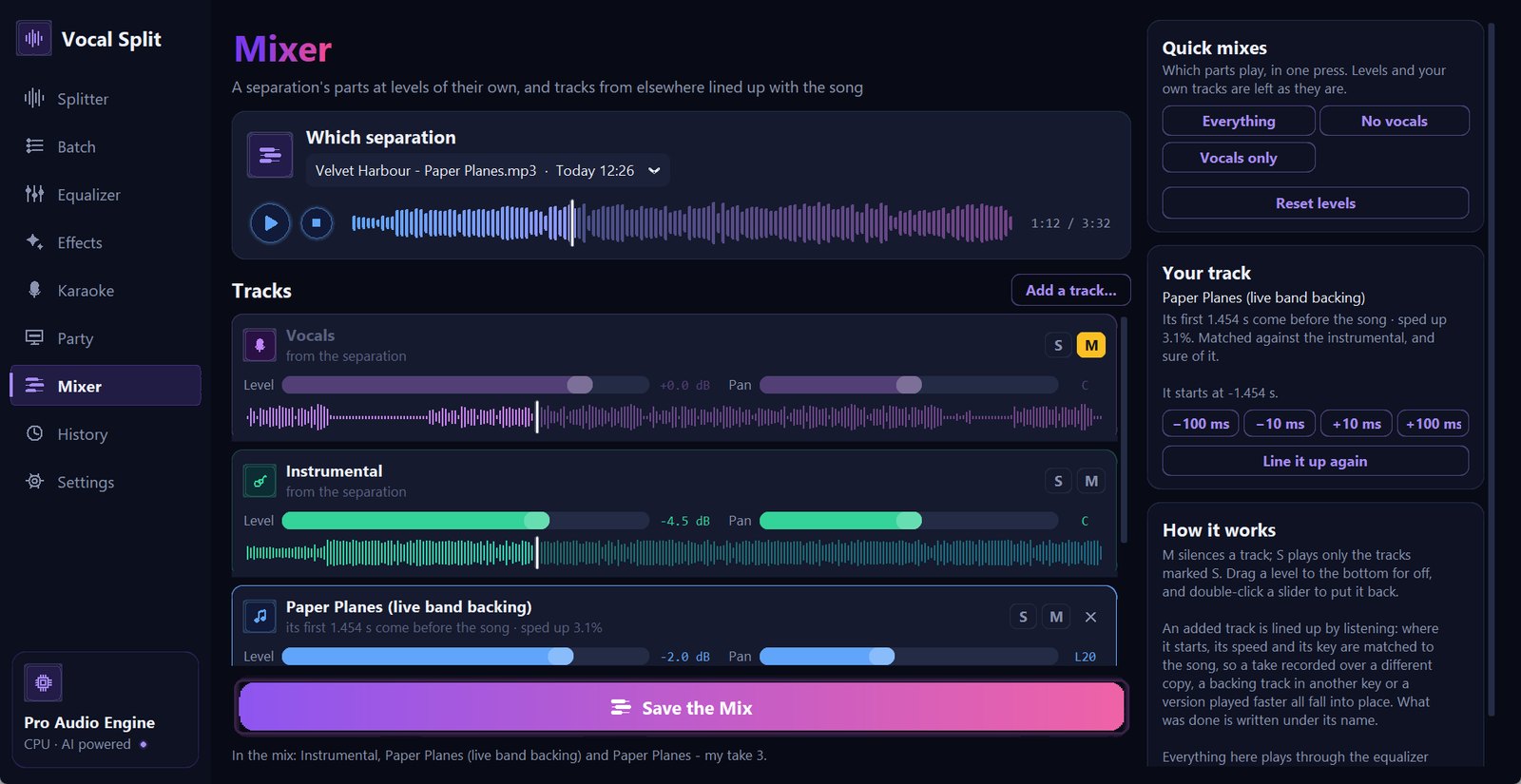
The Mixer page puts every part of a separation on its own line, with a level, a place between the speakers, a mute and a solo. Add a track of your own — a take you sang, a backing track from another source, a guide — and Vocal Split lines it up with the song by listening to it: where it starts, its speed and its key. Everything is heard as you set it, and the result is saved as one file.

The Mixer page: Paper Planes chosen, the song's waveform with the playhead at 1:12, the Vocals line muted, the Instrumental at −4.5 dB, an added live band backing track, the quick mixes and the card for the added track with its nudge buttons, and the Save the Mix button
Mixer — the vocal muted, the instrumental turned down, and a live band backing lined up with the song

The song and the transport

Every track

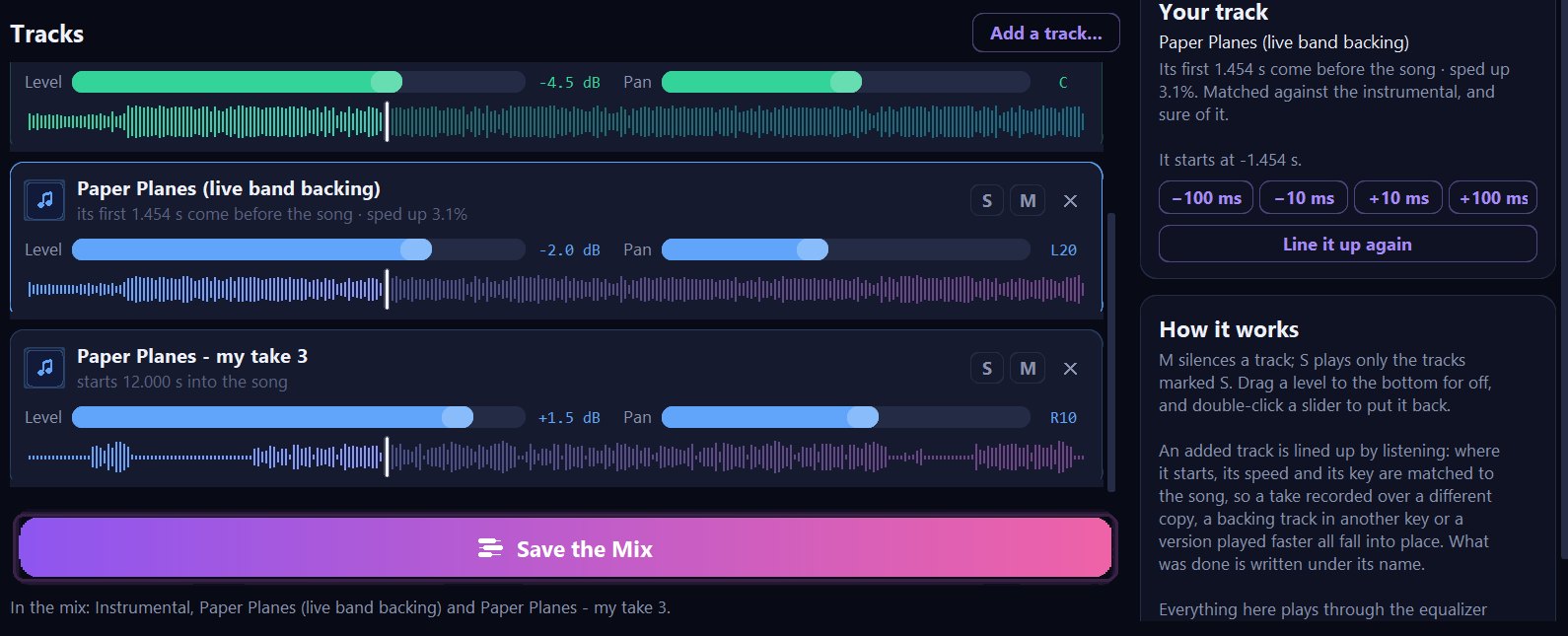
Two added tracks in the mixer: a live band backing that starts 1.454 seconds before the song and was sped up 3.1%, and a sung take that starts 12 seconds into the song, each with level and pan sliders, S, M and remove buttons, and a waveform placed on the song's timeline
Added tracks, each with what was done to line it up written under its name
  • Level From off up to +6 dB, in half-decibel steps, with the value beside it. Drag it to the bottom for off; double-click to put it back to 0 dB.
  • Pan From left to right, with the position shown as L, C or R and a number. Double-click for the middle.
  • Waveform Each track drawn on the song's own timeline, all to one scale — so you see where an added take starts, and how loud each part is next to the others.
  • M Mute — the track stays in the list but is silent. A muted track is drawn dimmer, sliders and all.
  • S Solo — only the tracks marked S play. Several can be soloed at once.
  • Takes an added track out of the mix. The file you added is never touched.

Quick mixes

Your own tracks, lined up automatically

Add a track… takes MP3, WAV, FLAC, M4A, AAC, OGG, Opus, WMA and AIFF files, at any sample rate — several at once if you like. Each is compared with the song and with every one of its parts, and placed against the one it agrees with most: a sung take against the vocal, a backing track against the instrumental. It works in the background, and the track shows Lining it up with the song… until it is done.

The Your track card

Saving and keeping

14 · History & cutting

Every separation kept — and cut to length

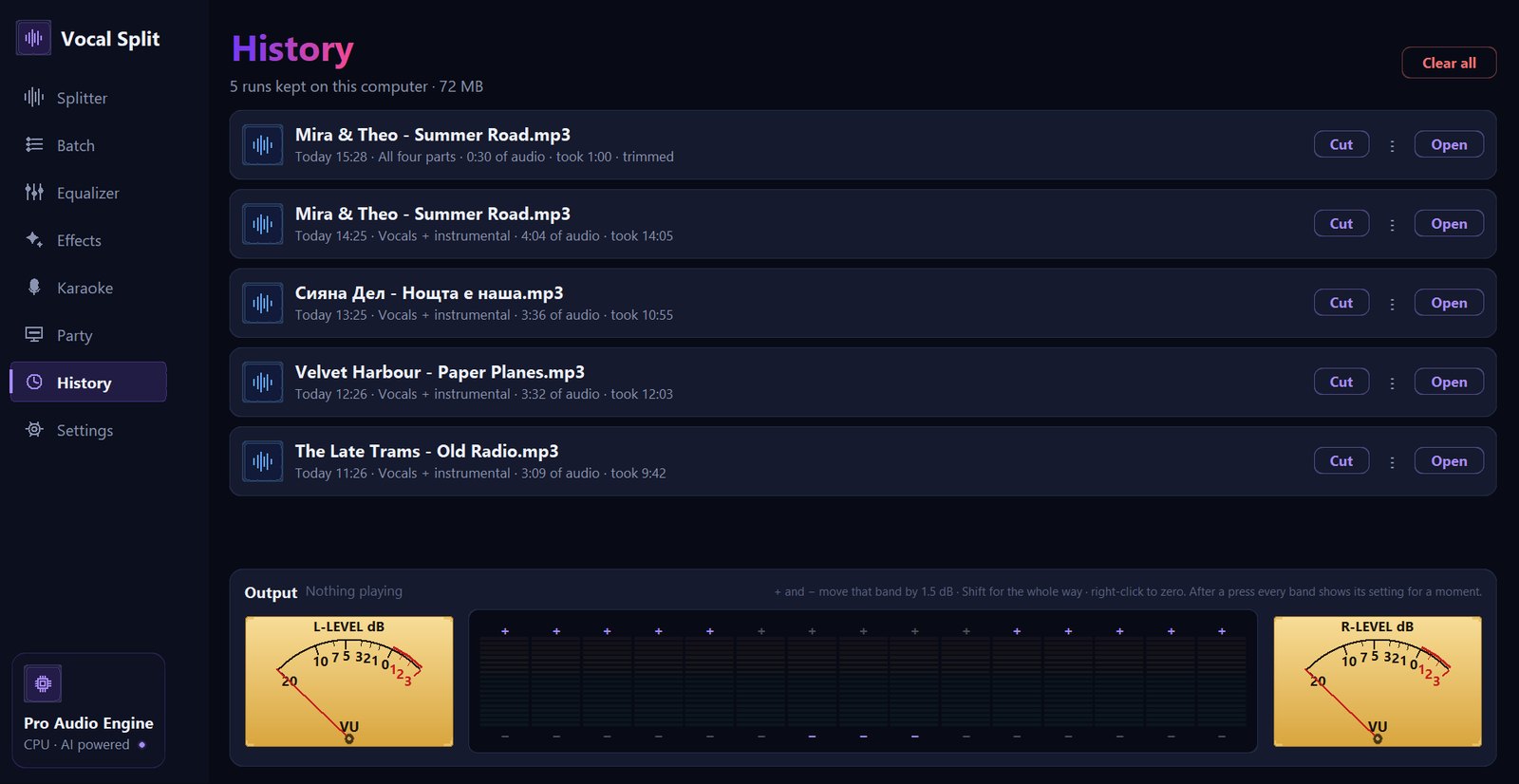
The History page keeps your recent separations, so you can play and save their stems again without waiting for the AI a second time.

The History page listing five separations with their date, type, length and processing time, each with Cut, menu and Open buttons, above the output meters
History — date, separation type, length and how long each took

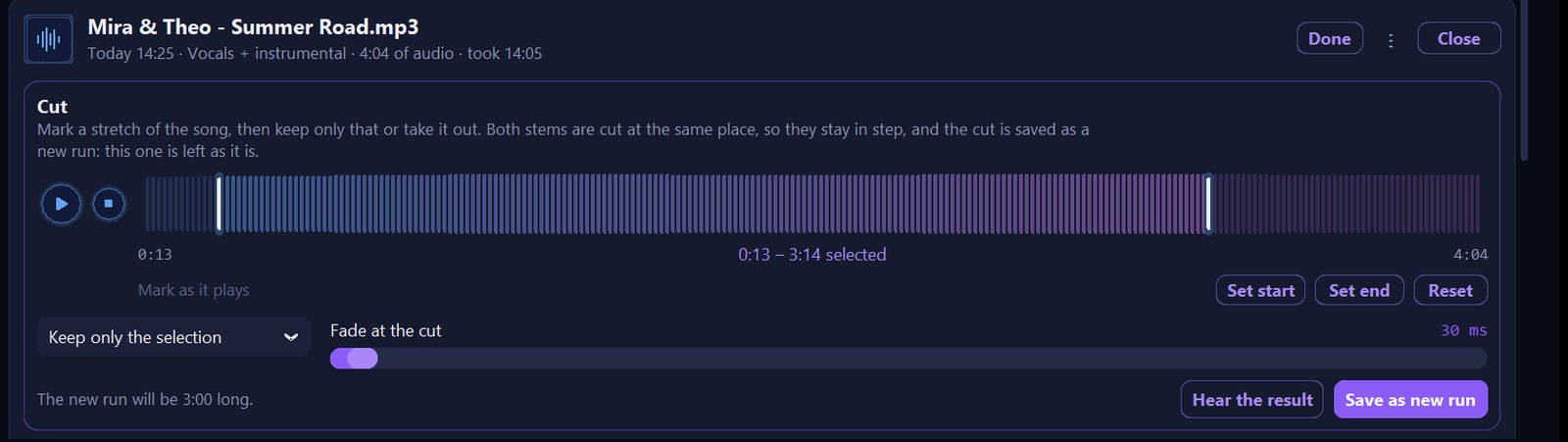
Cut

The Cut panel: the song's waveform with a stretch from 0:13 to 3:14 selected, Set start, Set end and Reset buttons, a Keep only the selection menu, a Fade at the cut slider at 30 ms, a note that the new run will be 3:00 long, and Hear the result and Save as new run buttons
Cutting a run: keep a stretch or take one out
15 · Settings

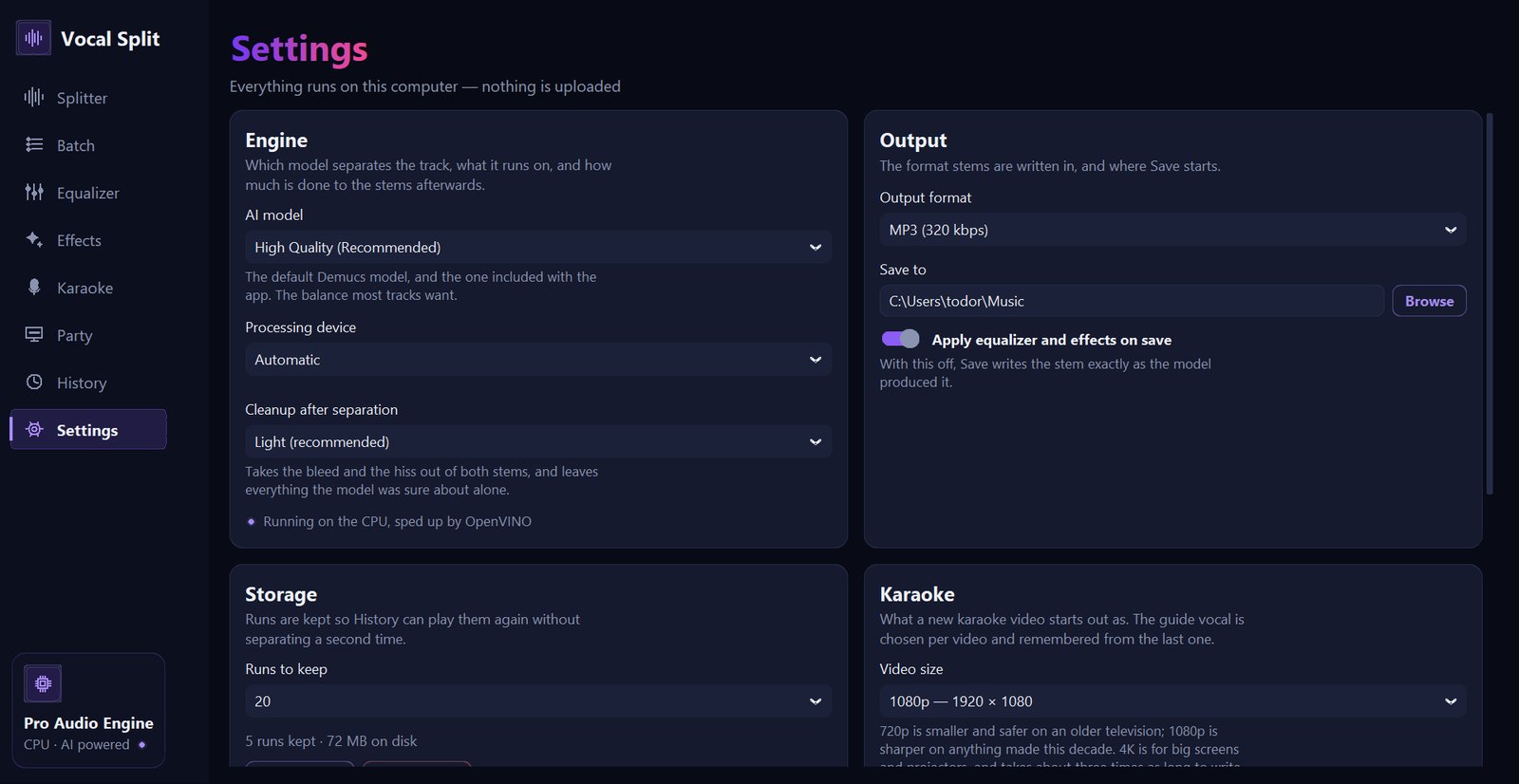
Everything in one place

The Settings page with Engine, Output, Storage and Karaoke cards
Settings
  • Engine AI model with a note about each · Processing device · Cleanup after separation · and a line saying what the separation actually runs on.
  • Output Output format · Save to with Browse · Apply equalizer and effects on save — off, Save writes the stem exactly as the AI produced it.
  • Storage Runs to keep (4, 8, 12 or 24) · how many runs and megabytes are kept · Open folder · Clear history.
  • Karaoke The default Video size and Count-in before each entry.
  • About Version and edition, where settings and runs are kept, and Third-party licences.

Your settings, presets and the equalizer and effects you left come back exactly as they were the next time you open Vocal Split. The interface is in English.

Editions

Free, Home and Pro Editions

Try the whole app for free on a minute of any song. The Home Edition is the complete karaoke maker for your house; the Pro Edition adds what you need to make karaoke for a living. Pricing will be announced at launch.

FeatureFree EditionHome EditionPro Edition
Vocal & instrumental separationFirst 60 s · 3 songs a dayWhole songs, unlimitedWhole songs, unlimited
Vocals only / instrumental onlyFirst 60 s
All four parts (drums, bass, other)
Cleanup pass · three AI models · MP3 / WAV / FLAC
15-band equalizer, effects, VU meters
Key & tempo (listening and videos)
Karaoke videos — automatic & AI word timing, manual correction
Duets in colour · Latin letters under Cyrillic
Ready-made looks, backgrounds, pictures, count-in, guide vocal
Video sizes720p · 1080p720p · 1080p · Vertical 9:16720p · 1080p · Vertical · 4K
Custom typeface, colours, placement, size · logo
MP3+G export
Karaoke party on the TV
History · cutting a runHistory
Mixer — levels, pan, mute & solo for every part, your own tracks lined up automatically
Batch processing · “Artist - Song” file names
UsePersonal usePersonal useCommercial — bars, hosts, channels
A Pro Edition licence covers commercial use of the software. The rights to the songs you process remain your responsibility — please only process music you are allowed to use.
Under the hood

Built carefully, measured honestly

  • Demucs AI The hybrid-transformer separation model (htdemucs), included with the app so it works on the first run with no download.
  • OpenVINO acceleration On Intel and AMD processors, 1.4–1.5× faster than the standard engine, with identical output.
  • Forced alignment A speech model with a commercial-friendly licence finds each word in the vocal; its thresholds were tuned on real Bulgarian and Serbian songs.
  • High-quality time-stretch Signalsmith Stretch moves key and tempo while keeping voices natural.
  • Psychoacoustic bass Harmonics generated at a steady level from the bass, so small speakers suggest the notes they cannot play.
  • Automatic track alignment Onsets and notes compared at every speed in range: an added track's start, speed and key are found without being asked for.
  • Professional text rendering Lyrics are drawn by libass with HarfBuzz and FriBidi — correct for right-to-left and complex scripts.
  • Hardware video encoding H.264 through your graphics card or Windows itself, in colours labelled BT.709 so TVs show exactly what you chose.
  • Fast writing A 4-minute 1080p video is written in about 1 minute 20 seconds on a two-core laptop; 4K takes about three times as long.
  • Any audio file Formats the audio library does not read, such as M4A, are decoded by the FFmpeg built into the app.
  • Protected, native code The app's own code is compiled to native modules.
Requirements & privacy

What you need

ItemRequirement
SystemWindows 10 or Windows 11, 64-bit
ProcessorAny modern 64-bit Intel or AMD processor. Separation runs on the processor: on a modest two-core laptop a 4-minute song takes around 14 minutes; faster processors take proportionally less. The 60-second free preview takes about a minute.
Memory8 GB recommended
DiskAbout 800 MB for the app, plus room for your separations (a 4-minute song is about 20 MB of MP3 stems). The optional word aligner is a one-time 1.2 GB download.
VideoAny graphics card that encodes H.264 (NVIDIA, Intel, AMD) — or Windows' own encoder; a software encoder is included as a fallback
PartyA TV or projector connected as a second screen (recommended), or a single screen with the keyboard
InternetNot needed to separate, make videos or run a party. Only for the optional extra AI models and the word aligner, downloaded once.

Your music stays on your computer

Vocal Split never uploads your audio, your lyrics or anything about what you do. Separations, settings and presets are kept in your own Windows profile, and Settings has a button that deletes all of it. The only time the app reaches the internet is to download an optional model you asked for, or when you click a link to this website.

FAQ

Frequently asked questions

Does Vocal Split work without an internet connection?

Yes. Separation with the default model, karaoke videos, MP3+G, the party and everything else work offline. Only the two optional AI models and the word aligner are downloaded — once, when you first choose them.

Is my music uploaded anywhere?

No. Everything happens on your own computer. There is no account, no cloud processing and no tracking of what you separate.

Which files can I open?

MP3, WAV, FLAC, M4A and OGG for separation. The Party page also plays karaoke videos (MP4, MKV, MOV, AVI, WEBM, M4V) and MP3+G files, and the Mixer (Pro) also takes AAC, Opus, WMA and AIFF tracks.

Can I add my own recording to a separated song?

Yes, in the Pro Edition's Mixer. Add a take you sang, a backing track or a guide, and it is lined up with the song automatically — its start, its speed and its key — then mixed with the parts you choose and saved as one file. If it does not sound enough like the song to be placed with confidence, it is left at the start for you to move by hand in 10 or 100 ms steps.

Why can't I hear the separated bass on my laptop?

Because nearly all of a bass line is below 150–200 Hz, where laptop, phone and TV speakers play almost nothing — the meters show it moving, but the speakers cannot reproduce it. Listen on headphones, or turn on Bass on small speakers on the Effects page (or pick the “Small speakers” preset): it adds the bass's harmonics, which small speakers can play, so you hear the bass line.

How good is the separation?

Vocal Split uses Demucs, one of the best open separation models available, followed by its own cleanup pass that removes most of the bleed between voice and music. Results depend on the recording — heavily reverberant or very dense mixes are always harder — but for karaoke the instrumental is usually clean enough that nobody notices anything is missing.

Where do the lyrics come from?

You paste them — or import a .txt or .lrc file. Vocal Split deliberately does not download lyrics from the internet: you stay in control of the words and of the rights to use them.

What if the timing is wrong in places?

Drag the dividers on the vocal's waveform to move where a line starts, right-click to change the singer, and watch the preview update instantly. Turn on “Stop after the timing” to check everything before the video is written. Your corrections are kept with the song.

Will the video play on my TV?

Videos are standard MP4 files with H.264 video and AAC sound — the combination practically every TV, media player and USB stick setup accepts. Choose 720p for very old sets, 1080p for most, and 4K for big screens and projectors.

Can I make karaoke in languages other than English?

Yes — any language and any alphabet. For Bulgarian, Serbian and Russian, Vocal Split can also add the lyrics in Latin letters under the Cyrillic line.

How do duets work?

Write who sings on a line of its own before their lines — for example [Anna], [Mark] or [Both]. Each singer's words light up in their own colour, and lines sung together in a mix of both. You can also right-click any line on the timeline to change who sings it.

What is MP3+G and do I need it?

MP3+G is the classic karaoke format used by karaoke discs, players and hosts' software (which can often change the key live). If you only play karaoke at home from a USB stick, the MP4 video is all you need. If you run karaoke nights with dedicated software, MP3+G (in the Pro Edition) fits straight into your library.

Can I use Vocal Split for my karaoke business or YouTube channel?

Commercial use needs the Pro Edition licence. Please note that the licence covers the software; the rights to the music you process are your own responsibility.

How does the karaoke party work with one screen?

The words fill the whole screen and the keyboard runs the party: Space starts and pauses, → skips, ← restarts, ↑ ↓ change the key, and Esc brings you back to the app. With a TV connected as a second screen, the words go to the TV while you manage the queue on the laptop.

How long does separation take?

It depends on your processor. On a modest two-core laptop a 4-minute song takes around 14 minutes; faster processors take proportionally less. You can mark just the part you need, and a batch can run overnight.

What does the free edition include?

The whole app on the first 60 seconds of any song, up to three songs a day — including karaoke videos and the party — so you can judge the quality for yourself before buying.

Is Vocal Split available for Mac or Linux?

Not at the moment — Vocal Split is made for Windows 10 and 11.

What language is the app in?

The interface is in English. The installer is available in fourteen languages.

All questions, including the release and the beta →
Vocal Split is coming soon

Vocal Split is in internal testing, and the installer is waiting for its certified code signature. Then a small group of people who live and breathe karaoke and audio will test it before release. If you host karaoke nights, run a karaoke channel or work with vocals and stems, apply for the beta.

Coming soon · Join the beta programme